
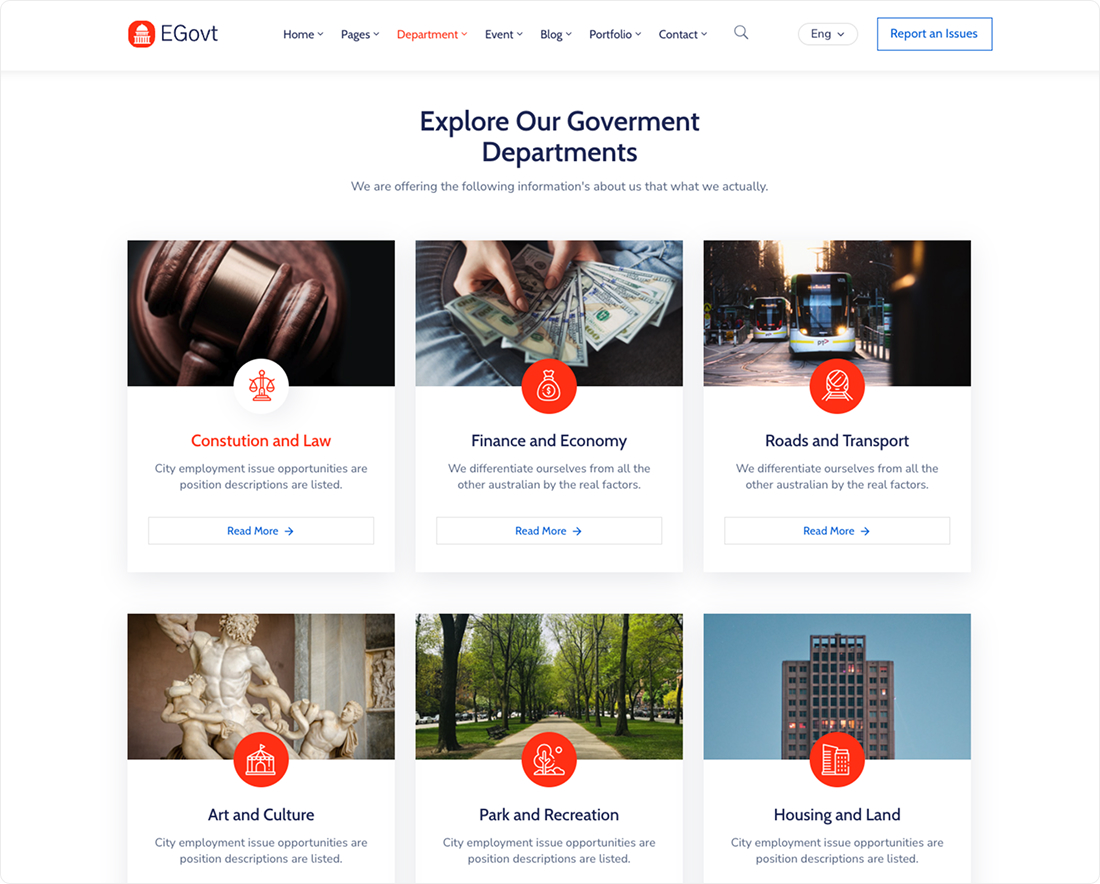
A government’s structure is confusing to outsiders. A department directory fixes that: one organized place where each unit explains what it does, who leads it and how to reach it. This guide shows how to build one in WordPress with the Egovt theme’s Department module.
What every department page should answer
- What the department does — its mission and main responsibilities.
- Who leads it — the department head and key contacts.
- How to reach it — phone, email and office.
- Related forms and documents the department is responsible for.
- Where it sits in the wider organization, via a clear category.
Building it with Egovt’s Department module
Egovt provides a dedicated Department custom post type — one we built and register through our OvaTheme Department plugin, purpose-made for government units. Instead of forcing departments into ordinary pages, you manage them from their own Department section in the admin, with fields designed specifically for this.
One note on URLs: out of the box, department pages use the slug /ova_dep/ (for example, yourcity.gov/ova_dep/public-works). You can turn that into something cleaner like /department/ — or any slug you like — without editing code, using the free Loco Translate plugin. The full how-to is in changing a custom post type’s URL slug.
1. Add each department
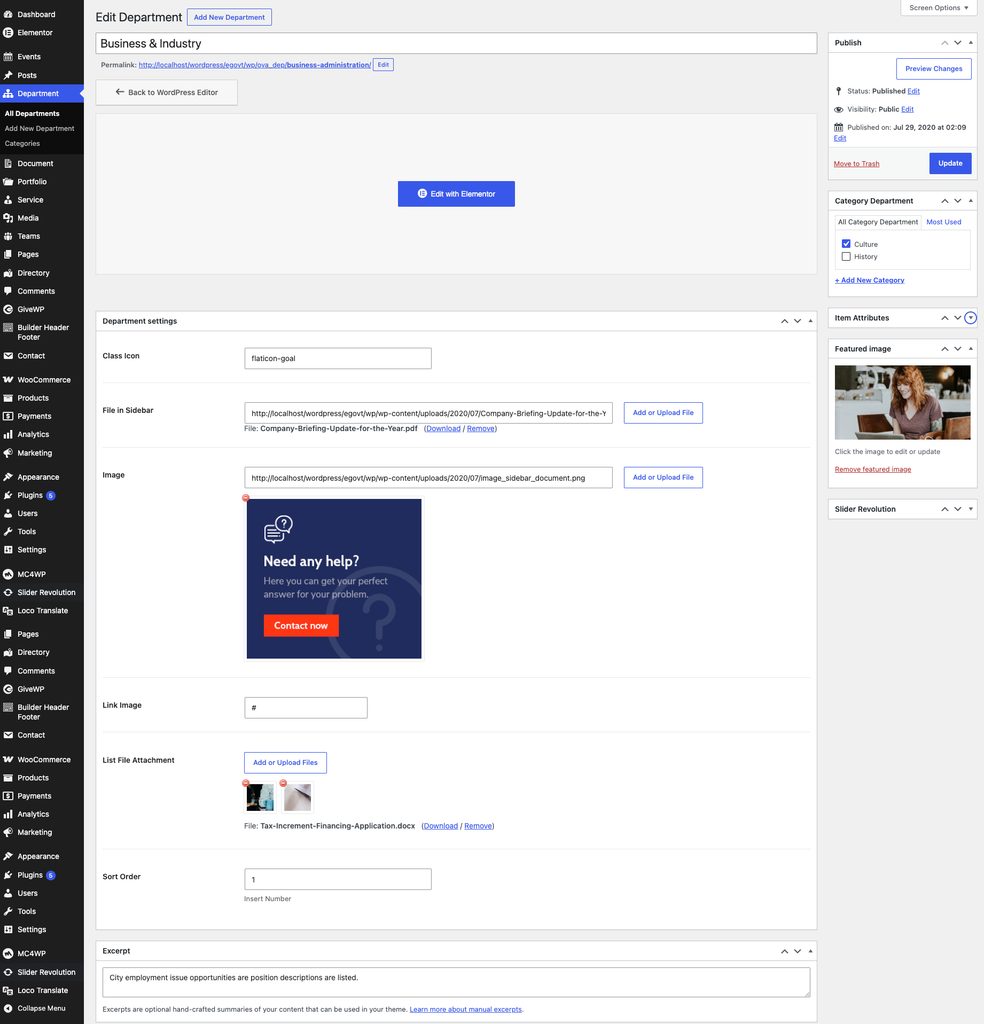
Go to Department → Add New Department, write the title and description (mission, duties), then set in the department settings box:
- A Class Icon to represent the department.
- An Image and optional Link Image.
- List File Attachment for the department’s forms and files, with a File in Sidebar option.
- A Sort Order number to arrange departments.
2. Organize with categories
Use Department → Add New Category to group units (for example “Administration”, “Public Works”, “Community”). Categories drive the filtering on the directory.
3. Design the directory display
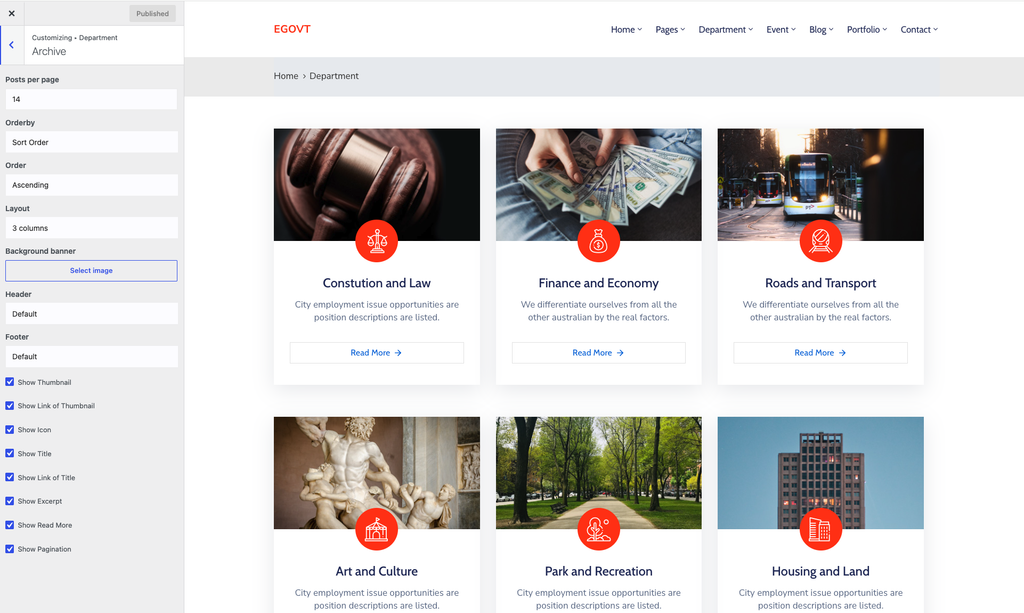
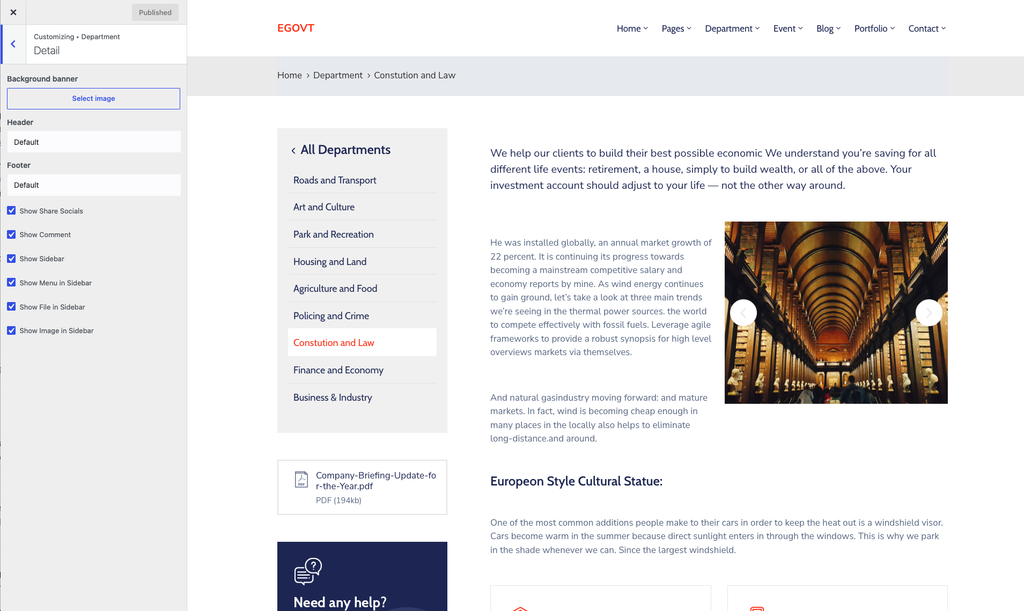
Under Appearance → Customize → Department you control the Archive and Detail views — columns, ordering, colors, the background banner, and (for slider layouts) autoplay and speed.
4. Place departments anywhere with Elementor
Egovt adds several Department widgets to Elementor, so you can feature departments on the homepage or any landing page — just drag one in while editing visually. Here’s what each element does:
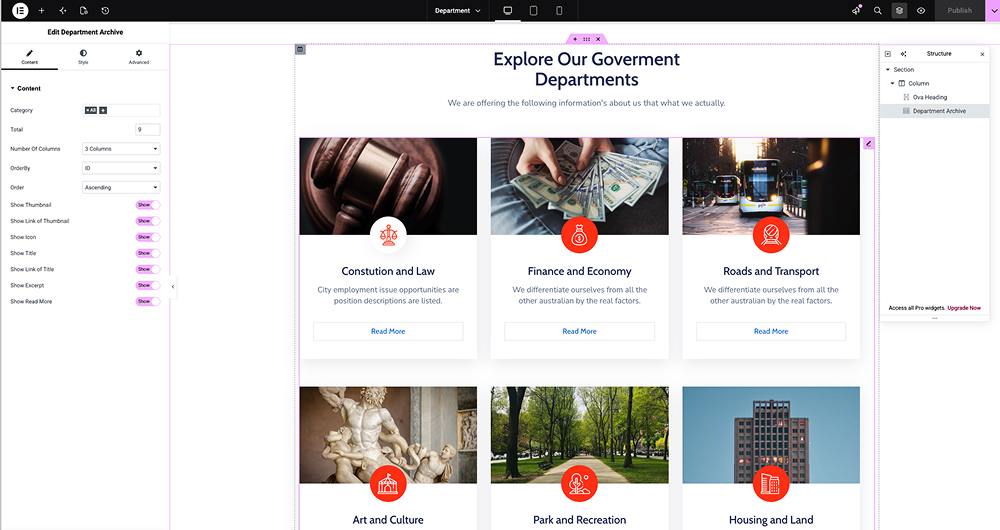
Archive Department
A filterable grid or list of all departments, with the number of columns you choose. Great for a “Departments” overview block.
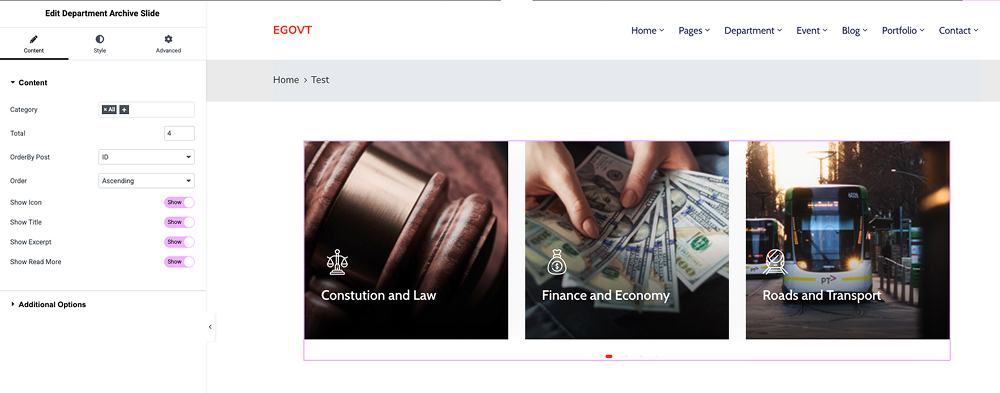
Department slider
The same departments in a rotating carousel — useful when space is tight or you want a highlight strip.
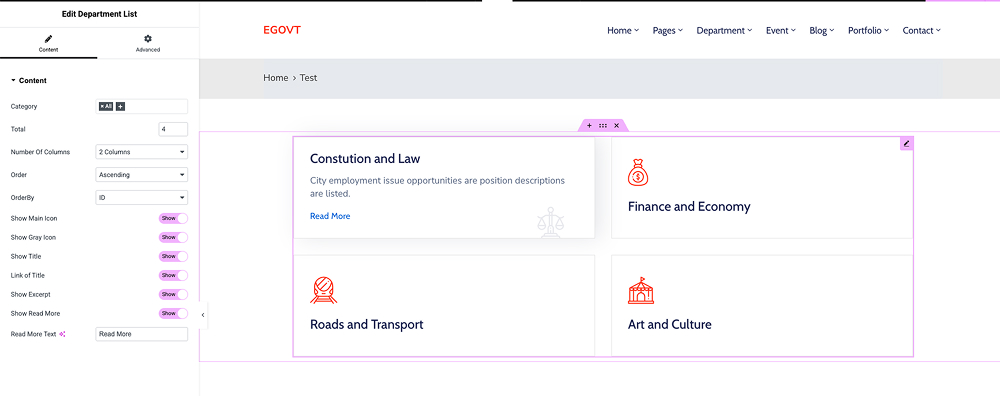
List Department
A compact, text-style list of departments, ideal for a sidebar or footer.
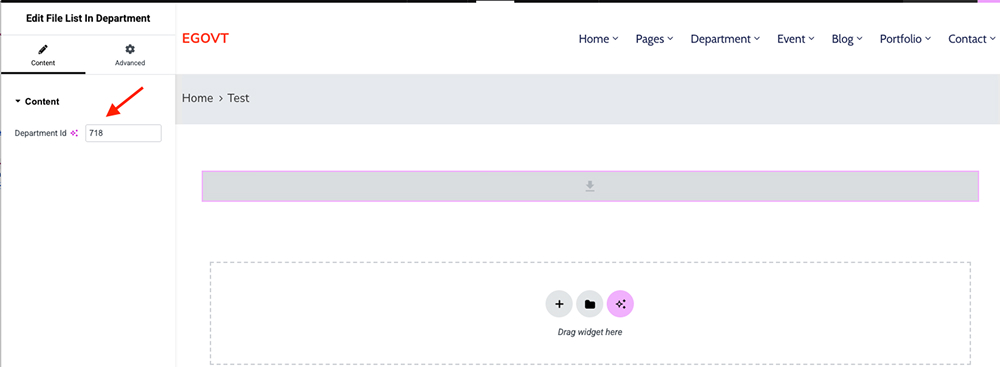
Department list file
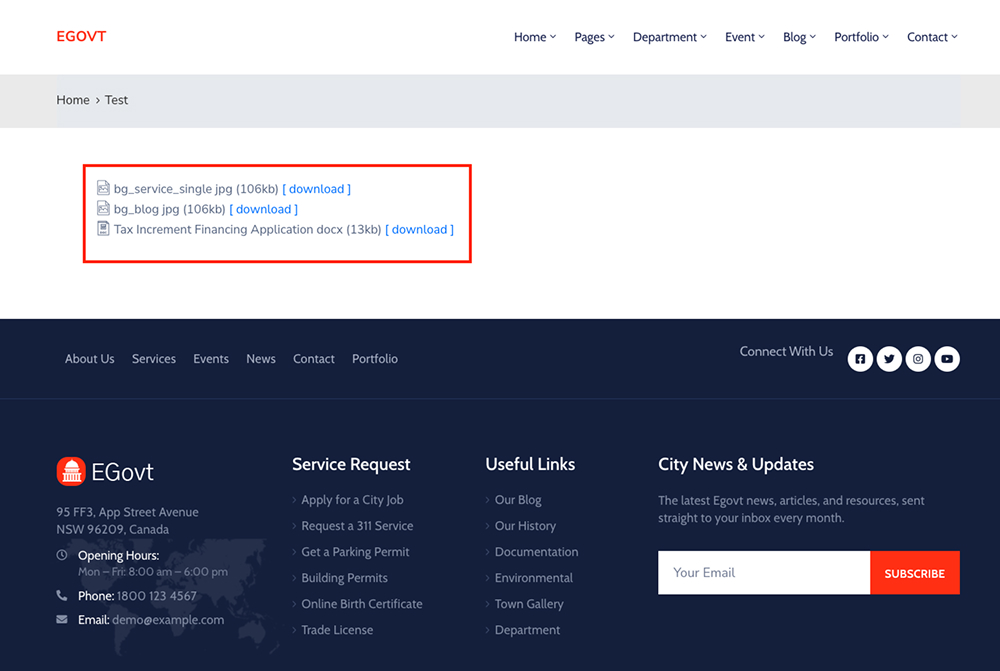
Shows the files attached to a department (forms, reports), so people can download them from any page.
Tips for a directory people actually use
- Write each mission in plain language, not internal jargon.
- Keep contact details current — this is the page people act on.
- Link departments to the services and documents they own.
- Add the department head’s name and photo to make it human.
A department directory rarely stands on its own — it’s one section of a much larger public-sector site. Once your departments are in place, you’ll usually want to connect them to online services, a records center, an events calendar and a staff directory, all held together by a clear site structure. If that whole project is still ahead of you, our step-by-step guide How to Build a Government Website With WordPress walks you through it from first install to launch.
Why we’d start with Egovt
Egovt manages departments, staff and services in one theme, all editable without code, for a one-time $49. Try it in the live demo.
Frequently asked questions
How do I create a departments page in WordPress?
In Egovt, go to Department → Add New Department to add each unit with an icon, description and files, group them under Department categories, then style the layout under Appearance → Customize → Department.
Can I show the department head and staff?
Yes. Describe the head in the department content and link to your staff directory, built with the Egovt Team module, so visitors move from a department to its people.
Is there a limit on the number of departments?
No. You can create unlimited departments and organize them with categories.
Can departments appear on the homepage?
Yes. Egovt includes Elementor widgets — including a department slider and list — to feature departments anywhere.
