
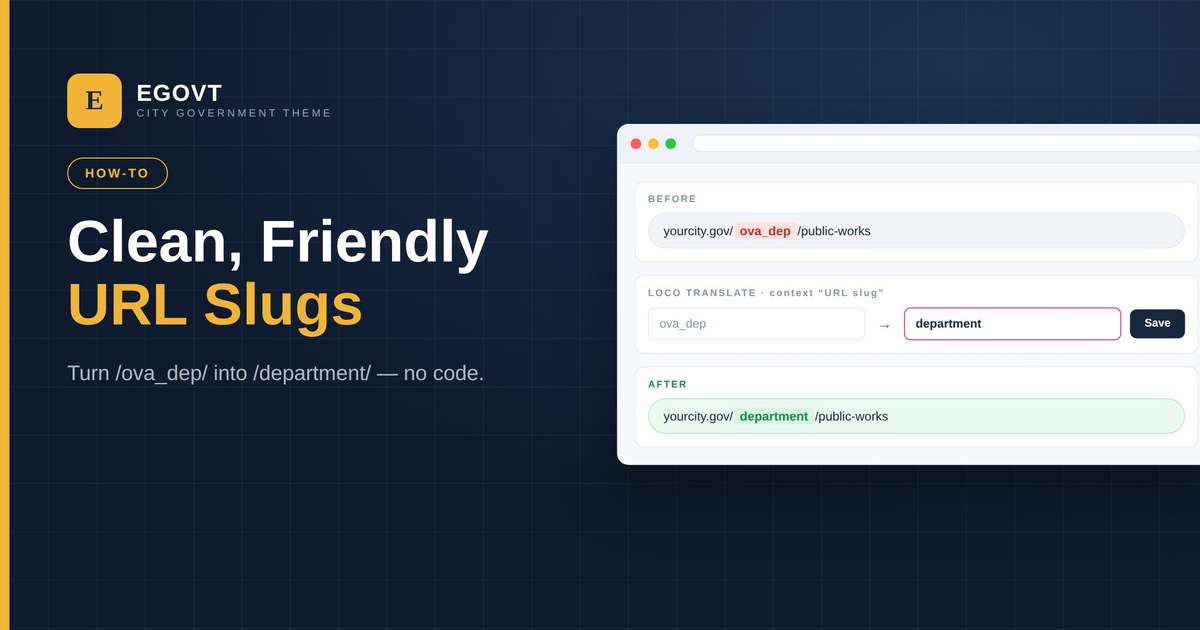
By default, Egovt’s custom post types are served under slugs like /ova_sev/, /ova_dep/, /ova_doc/, /ova_dir/ and /ova_por/. They work perfectly, but they aren’t the prettiest thing in a URL. The good news: you can rename them to clean, friendly paths — /service/, /department/, /document/, and so on — without editing a single line of code. This guide shows how, using the free Loco Translate plugin. It’s one finishing touch on the larger job of building a government website with WordPress.
Why the default slugs look like /ova_dep/
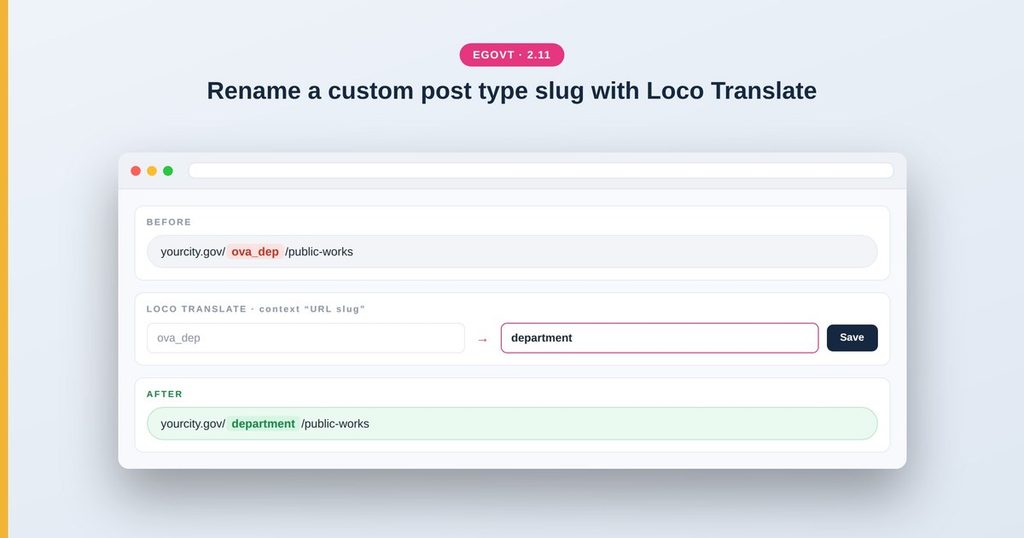
Every Egovt custom post type registers its URL slug as a translatable string, marked with the context “URL slug”. We did this on purpose: it lets you localise or rebrand the slug on each site without touching plugin code. The trade-off is that the raw default reads like /ova_sev/ or /ova_dep/ until you change it — which takes about two minutes.
What you’ll need
- The free Loco Translate plugin.
- Administrator access to your WordPress dashboard.
- One quick visit to Settings → Permalinks afterwards to refresh the URLs.
Step 1: Install Loco Translate
In the dashboard, go to Plugins → Add New, search for Loco Translate, then Install and Activate it. It’s free and widely used.
Step 2: Open the right plugin translation
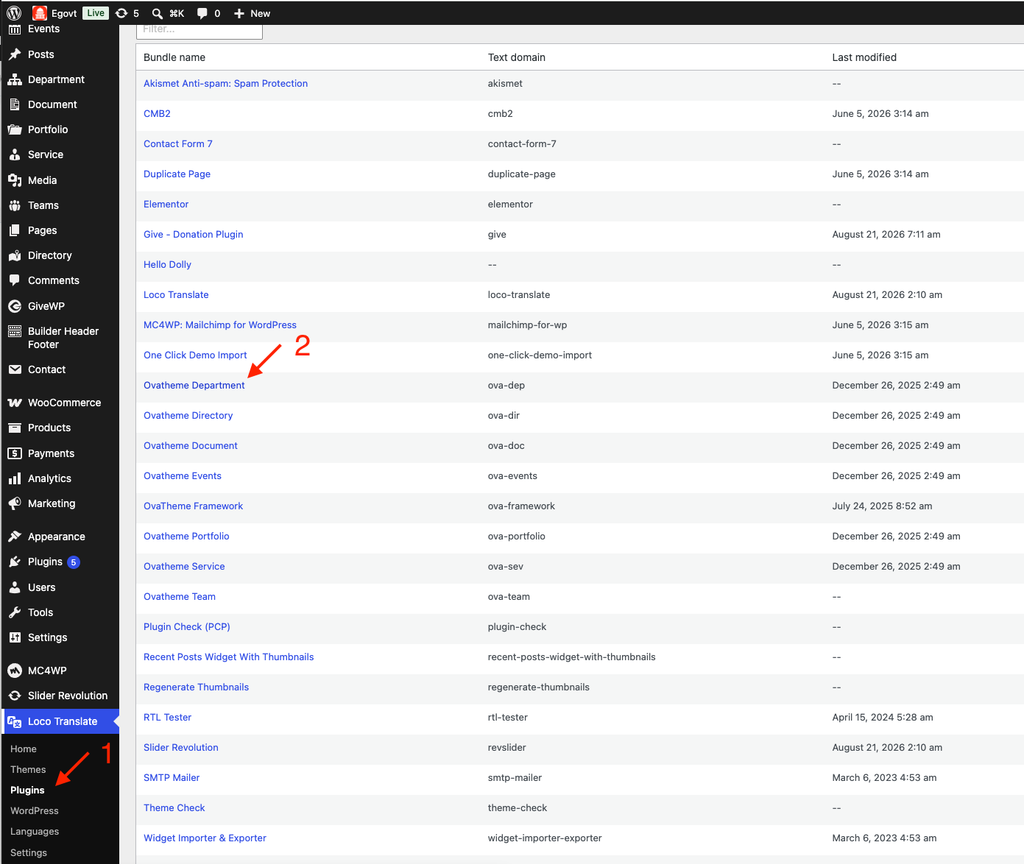
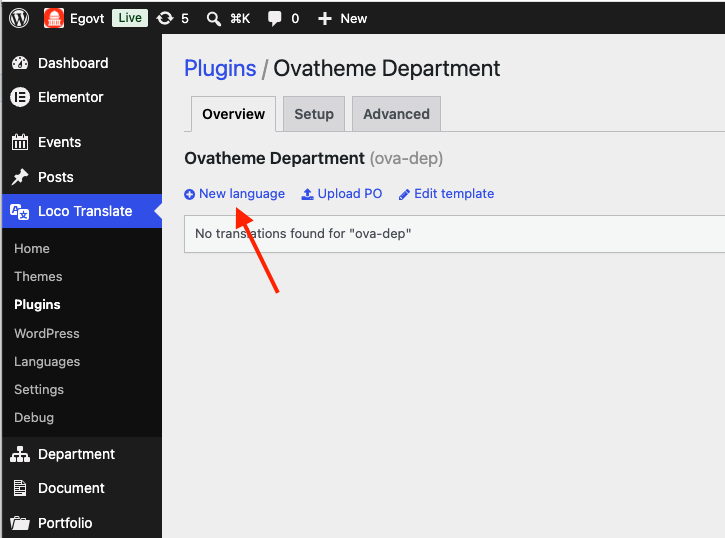
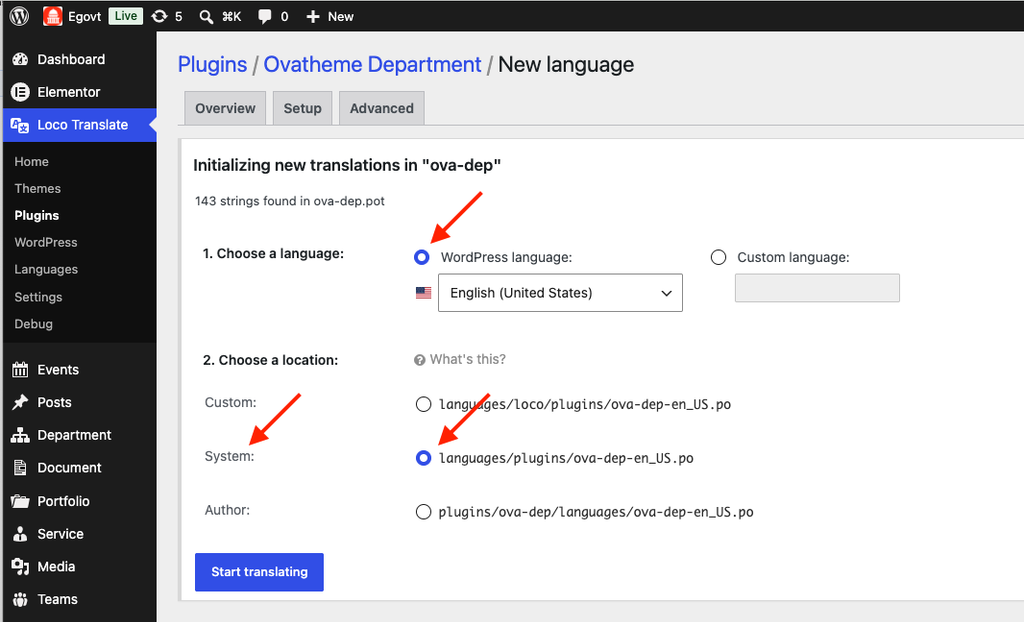
Go to Loco Translate → Plugins and choose the Ovatheme plugin whose slug you want to change — for example Ovatheme Service, Ovatheme Department, Ovatheme Document, Ovatheme Directory or Ovatheme Portfolio. Select your site language (or New language if none exists yet) and open the editor.
Step 3: Find the “URL slug” string
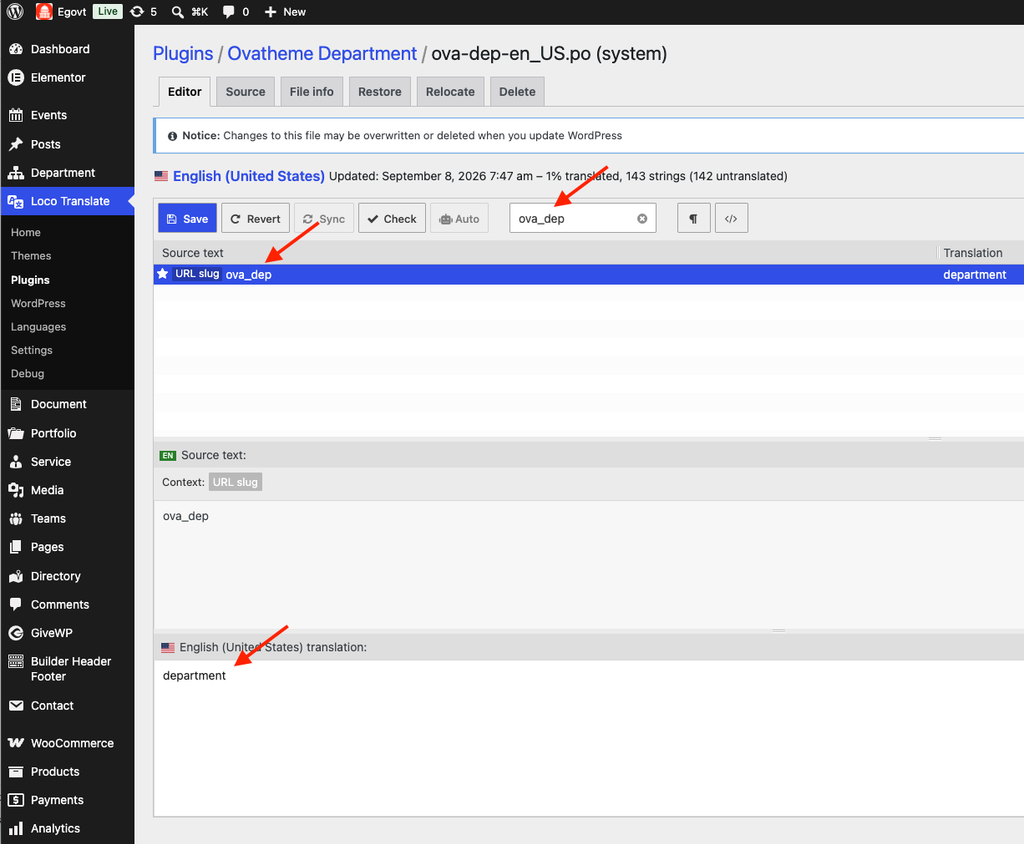
In the string list, use the search box to find the default slug — ova_sev, ova_dep, ova_doc, ova_dir or ova_por. It’s the one tagged with the context “URL slug”, which is how you tell it apart from the on-screen labels. Click to select it.
Step 4: Enter your friendly slug
In the translation box, type the slug you want and Save. Use a URL-safe value: lowercase, words separated by hyphens, no spaces or accents. Common choices:
- ova_sev → service
- ova_dep → department
- ova_doc → document (or records)
- ova_dir → places (or directory)
- ova_por → projects (or portfolio)
The event and team post types already use clean slugs, so rename those only if you want a different word.
Step 5: Flush permalinks
Go to Settings → Permalinks and click Save Changes — you don’t need to change anything on the page. This refreshes WordPress’s rewrite rules so the new slug takes effect. Skip this step and the renamed URLs will return 404 errors.
Rename the category slugs too (optional)
The category and tag taxonomies use slugs such as cat_sev, cat_dep, cat_doc, cat_dir, cat_por (plus event_type, event_tag and tag_dir). Translate those the same way if you’d like clean category URLs as well, then flush permalinks again.
Tips and gotchas
- Save translations to Loco Translate’s “custom” location (not “System”) so a future plugin update won’t overwrite them.
- Pick a slug that doesn’t collide with an existing page or another post type.
- Always flush permalinks (Settings → Permalinks → Save) after any slug change.
- On a multilingual site you can set a different slug per language.
- If the old /ova_dep/ URLs were already indexed, add redirects from the old paths to the new ones.
Friendly URLs are a small but worthwhile polish on a much larger project. If you’re still assembling the whole site — services, departments, documents, events and more — our complete guide How to Build a Government Website With WordPress covers every step.
Why we’d start with Egovt
Egovt’s custom post types, clean URLs and civic features come in one $49 theme, editable without code. See it in the live demo.
Frequently asked questions
Why do Egovt URLs show /ova_dep/ or /ova_sev/?
Each custom post type registers its slug as a translatable “URL slug” string, so the raw default is the plugin key. It is meant to be renamed to whatever you prefer.
Can I change the slug without code?
Yes. The free Loco Translate plugin lets you translate the “URL slug” string of each Ovatheme plugin to any friendly value, no coding required.
Do I need to flush permalinks after changing a slug?
Yes. Go to Settings → Permalinks and click Save Changes so WordPress rebuilds its rewrite rules, otherwise the new URLs return 404 errors.
Will a plugin update wipe my slug change?
Not if you save the translation to Loco Translate’s “system” location, which is kept separately from the plugin’s own files.
