
Many city websites do double duty as a guide to the area. A local places and attractions directory helps residents and visitors discover landmarks, parks, museums and venues — each with a photo gallery, a map and practical details. This guide shows how to build one in WordPress with the Egovt theme’s Directory module.
What a great places directory includes
- A map with a pin for every location.
- A photo gallery per place.
- Categories and tags so people browse by type.
- Opening hours and contact details.
- A clean, filterable archive of all listings.
Building it with Egovt’s Directory module
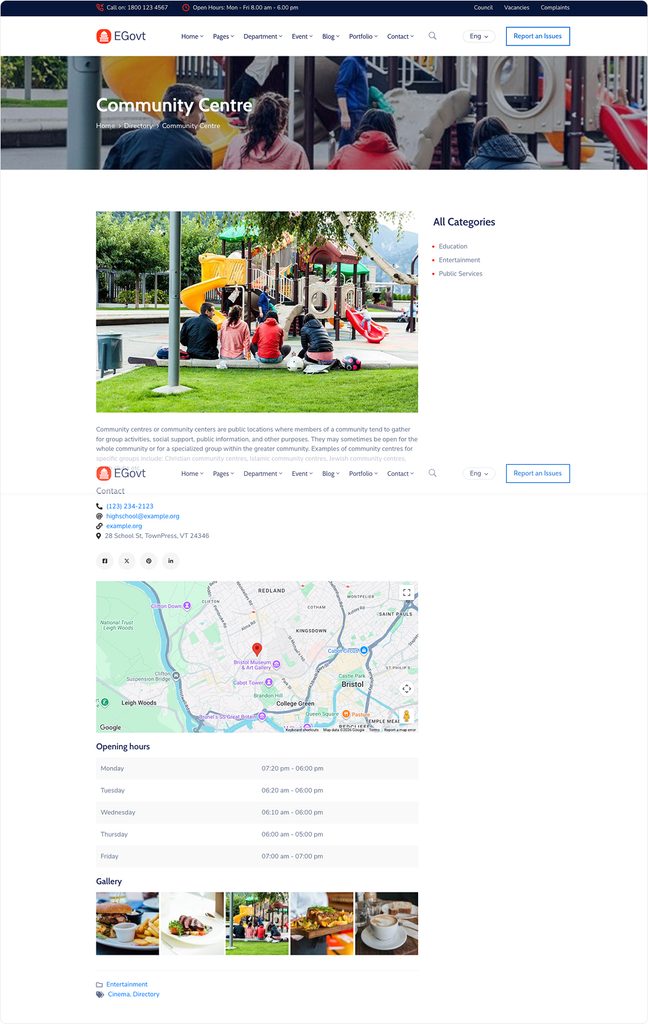
Egovt provides a dedicated Directory custom post type — built and registered by our OvaTheme Directory plugin for location listings — so each place is its own record with map, gallery and opening-hours fields, managed from the Directory section.
About the URL: directory listings live under /ova_dir/ by default. You can swap that for a friendlier path like /places/, /directory/ or anything you prefer — no code needed — using the free Loco Translate plugin. See how to tidy up the directory URL.
1. Add each place
Go to Directory → Add New Directory, write the name and description, then set the listing fields:
- A Google Map location (latitude and longitude).
- A gallery of photos.
- A contact group — icon, label and link (phone, website, email).
- An opening hours group — day of the week with opening and closing times.
2. Organize with categories and tags
Directory listings support both Categories and Tags (Directory → Add New Category / Tags), so visitors can browse by type — “Parks”, “Museums”, “Restaurants” — and filter further.
3. Style the directory
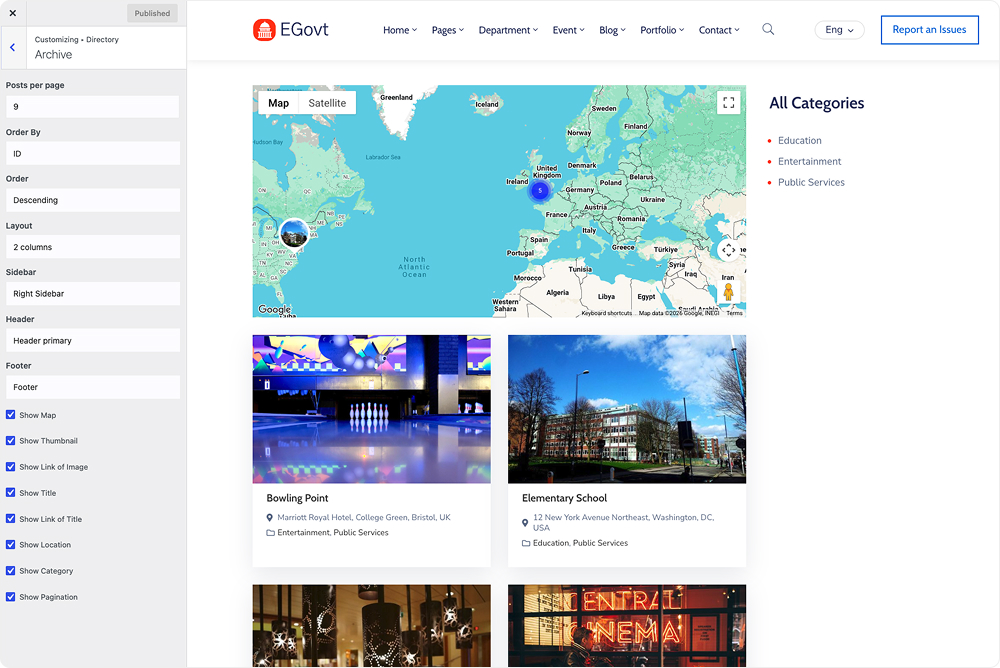
Under Appearance → Customize → Directory you control the Archive, the map’s default Archive Zoom, category display, the directory title and footer — so the listing page looks the way you want.
4. Place listings with Elementor
Egovt adds two Directory widgets to Elementor, so you can feature places anywhere — top attractions on the homepage, say. Here’s what each one does:
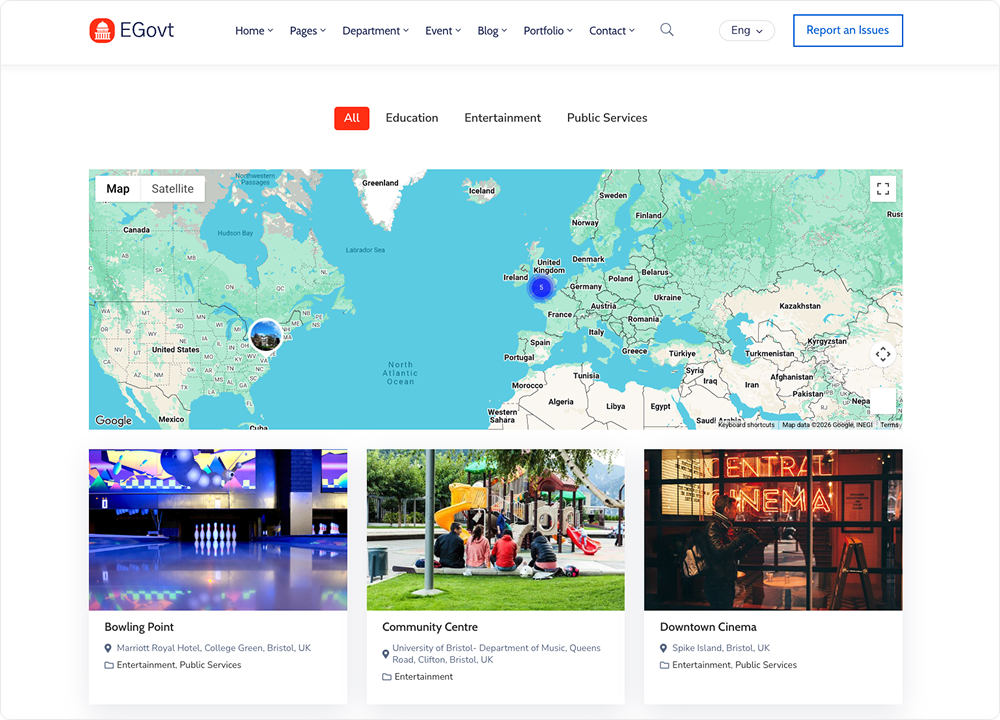
Directory archive
A filterable grid of listings (with their map and categories) — a curated or full places directory you can drop onto any page.
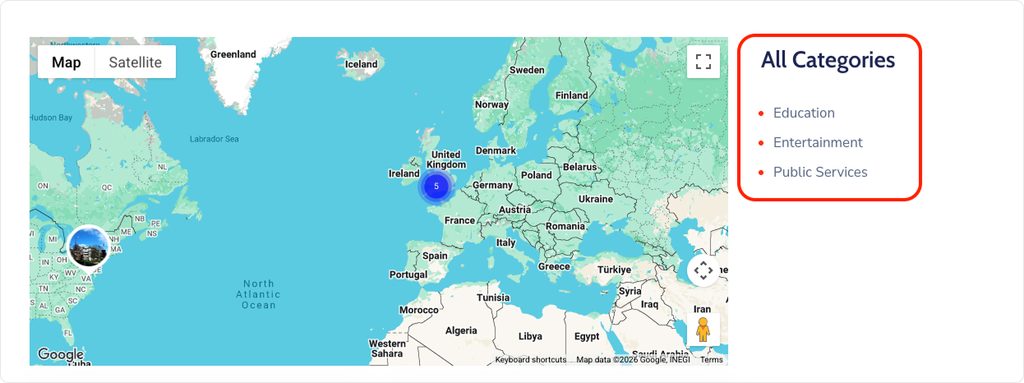
Directory category
Shows your directory categories (Parks, Museums, Restaurants…) as entry points, so visitors browse by type.
Tips for a directory people explore
- Add at least one strong photo per place — visuals drive engagement.
- Always set the map location; it’s the most-used detail.
- Keep categories intuitive and few.
- Fill in opening hours and contact so listings are genuinely useful.
A places directory adds real value, but it’s just one part of a full government website. In practice it lives beside your public services, departments, documents and events, unified by a citizen-friendly site structure. If the whole build is on your list, our step-by-step guide How to Build a Government Website With WordPress shows how every section fits together.
Why we’d start with Egovt
Egovt’s Directory module adds a full places guide to your government site, in one $49 theme with no coding. Explore the live demo.
Frequently asked questions
How do I build a directory in WordPress?
In Egovt, go to Directory → Add New Directory to add each place with a map location, gallery, hours and contact, group them with categories and tags, then style the archive under Appearance → Customize → Directory.
Does each listing show a map?
Yes. Every directory entry supports a Google Map location set by latitude and longitude, and the archive can show all pins on one map.
Can I add opening hours and contact info?
Yes. Each listing has an opening-hours group (day, opening and closing times) and a contact group for phone, website or email links.
Can I feature places on other pages?
Yes. Egovt provides Directory archive and category widgets for Elementor to feature selected places anywhere.
