
Governments do a great deal that residents never see — infrastructure works, community initiatives, annual milestones. A project portfolio makes that work visible and credible through image galleries and albums. This guide shows how to build one in WordPress with the Egovt theme’s Portfolio module.
What a project showcase should do
- Present each project as an image gallery or album.
- Show key details — date, location and responsible department.
- Let visitors filter by category (roads, parks, buildings).
- Offer a choice of clean layouts so it fits your design.
- Group related work into a coherent, browsable archive.
Building it with Egovt’s Portfolio module
Egovt provides a dedicated Portfolio custom post type — built and registered by our OvaTheme Portfolio plugin for this kind of visual showcase — so each project is its own record with gallery, date, location and department fields.
One note on URLs: projects appear under /ova_por/ by default. To make the path read /projects/, /portfolio/ or any slug you like, you can change it without touching code using the free Loco Translate plugin — the steps are in changing the portfolio URL slug.
1. Add each project
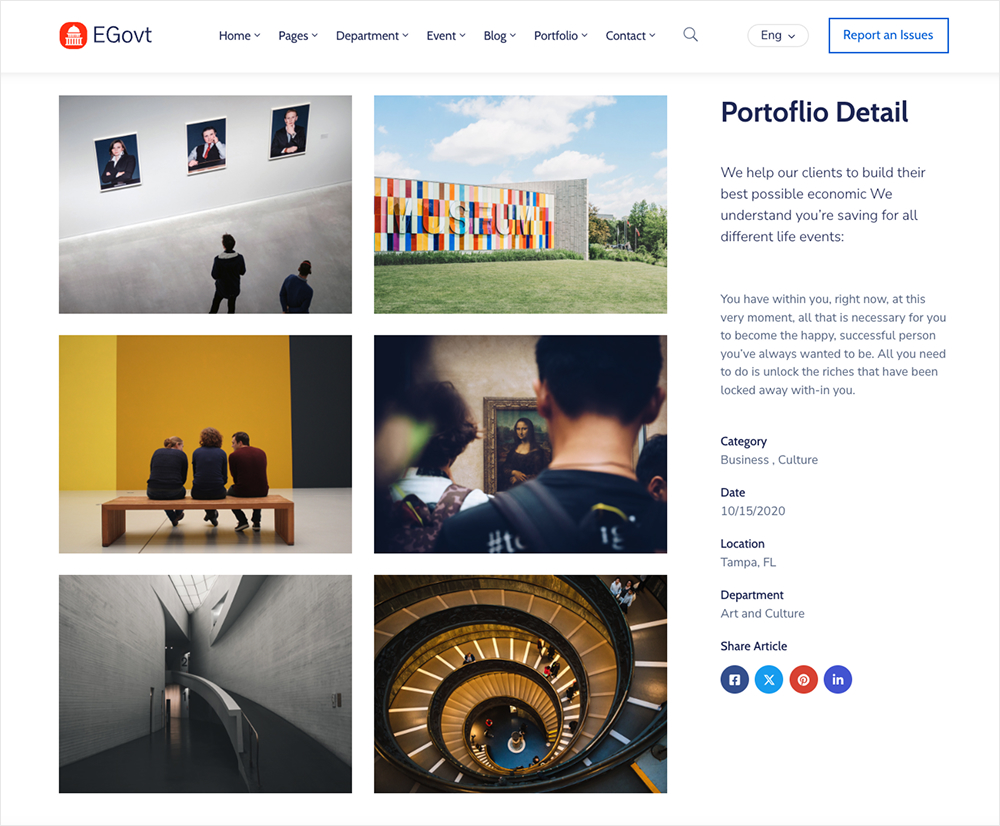
Go to Portfolio → Add New Portfolio, write the title and description, then set the project fields:
- A Gallery of images (the album for the project).
- The Date of the project.
- The Location.
- The responsible Department.
- A Sort Order number to arrange projects.
2. Group with categories
Use Portfolio → Add New Category to organize projects — for example “Infrastructure”, “Parks”, “Community”. Categories drive the front-end filtering.
3. Choose a layout
You have two ways to display projects. First, the Portfolio archive offers three layouts, set under Appearance → Customize → Portfolio (along with columns and options):
Classic layout
A traditional gallery layout, one project after another.
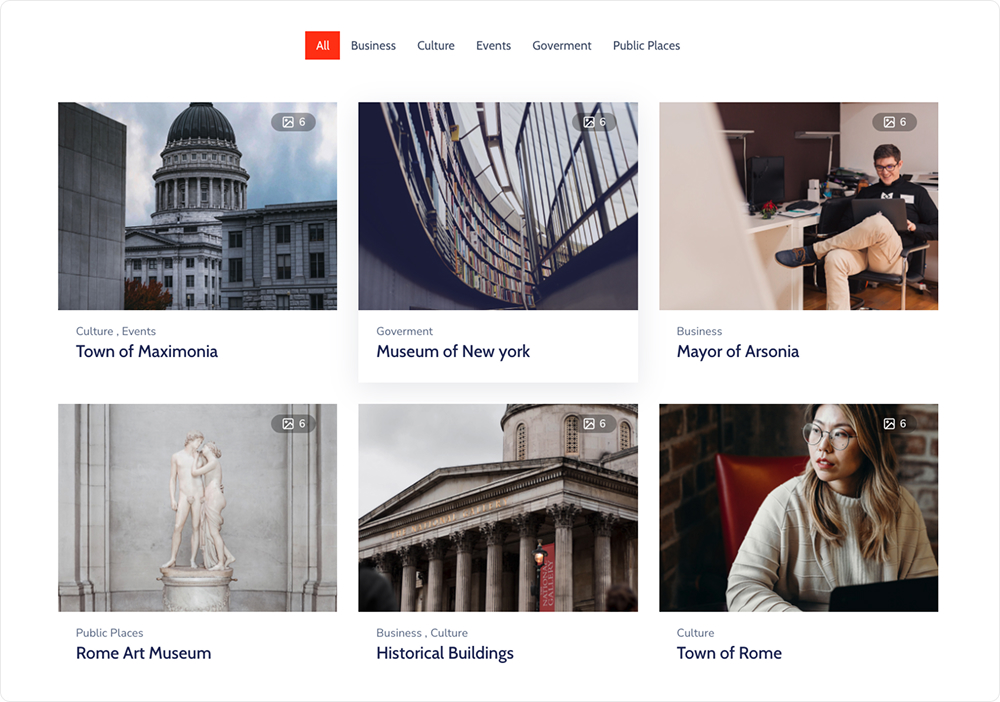
Grid layout
A compact, even grid of project thumbnails.
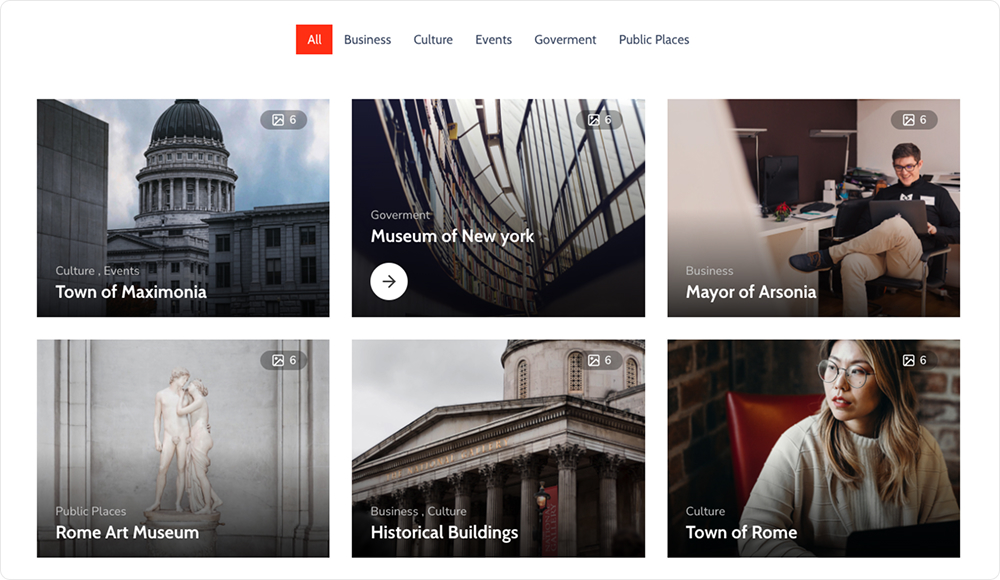
Modern layout
A contemporary, styled showcase layout.

Portfolio slider (Elementor)
For other pages, Egovt adds a Portfolio slider widget to Elementor — featured projects in a rotating carousel, ideal for showcasing recent or flagship work on the homepage.

Tips for a portfolio that impresses
- Lead each project with strong before/after or progress photos.
- Keep captions short and factual.
- Tag the responsible department to connect work to teams.
- Add the completion date to show momentum over time.
Showcasing projects is one chapter of a larger story — the complete public-sector website. A finished site typically combines your portfolio with online services, a department directory, documents and an events calendar under one clear structure. Tackling the entire project? Our full guide, How to Build a Government Website With WordPress, walks through building each part.
Why we’d start with Egovt
Egovt’s Portfolio module adds a projects showcase to your government site, in one $49 theme with no coding. See the live demo.
Frequently asked questions
How do I create a project portfolio in WordPress?
In Egovt, go to Portfolio → Add New Portfolio to add each project with an image gallery, date, location and department, group them with categories, then pick a Classic, Grid or Modern layout under Appearance → Customize → Portfolio.
What layouts are available?
The Portfolio module offers Classic, Grid and Modern layouts, plus a Portfolio slider widget for Elementor to feature highlights.
Can each project have a photo album?
Yes. Each portfolio entry has a Gallery field, so a project can hold a full album of images.
Can I filter projects by category?
Yes. Organize projects with categories and visitors can filter the portfolio archive by them.
