
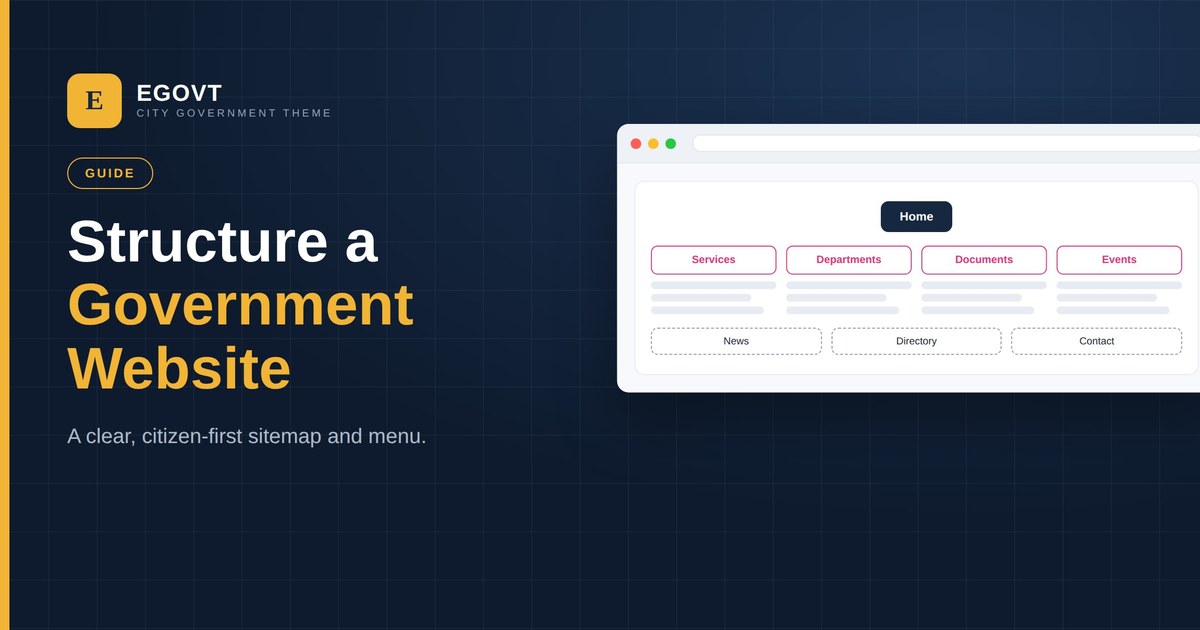
A government website succeeds or fails on structure. People don’t come to browse — they come to do something: find a service, download a form, check a meeting. If your information architecture is built around citizen tasks instead of your internal org chart, everything else gets easier. This guide covers how to structure a government website and plan a sitemap that works.
Start from citizen tasks, not departments
List the top things residents actually do on your site — apply for a permit, pay a bill, report an issue, find an office, read an announcement. Those tasks, not your organizational hierarchy, should shape the top navigation. Departments still get their own section, but they aren’t the front door.
The core pages every government site needs
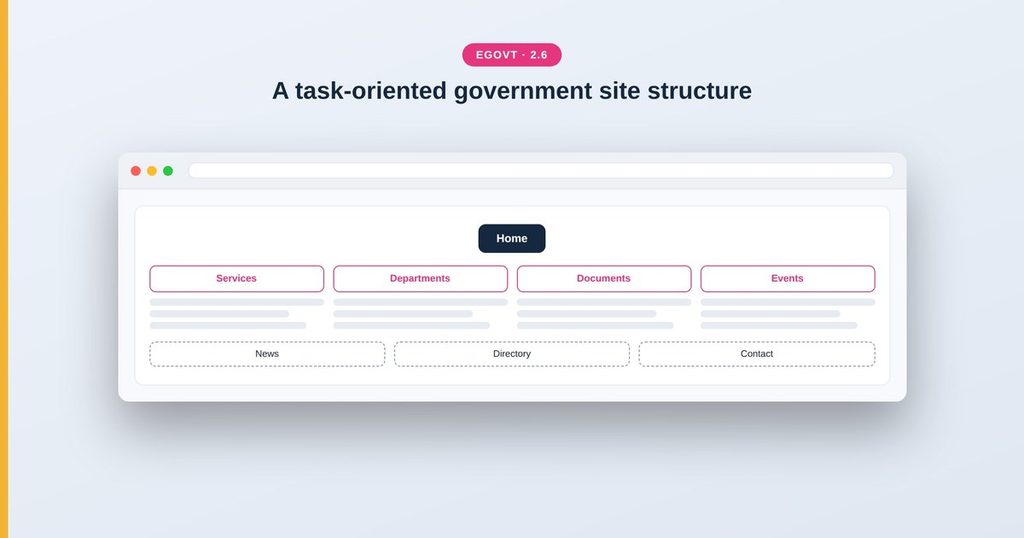
- Home — a clear entry point with search and links to the most-used tasks.
- Services — the searchable hub of everything you offer.
- Departments — each unit’s mission, duties and contacts.
- Documents — forms, policies and public records to download.
- Events — meetings, hearings and community programs.
- News/Announcements — official updates.
- About & Contact — who you are and how to reach you.
Plan a shallow, predictable sitemap
Aim to keep any service within two clicks of the homepage. Use a shallow hierarchy, consistent section names, and categories (not deep menus) to organize long lists. In Egovt, the built-in custom post types — Services, Departments, Documents, Events and Team — already give you clean, categorized archives, so your structure maps directly onto real sections rather than a pile of ad-hoc pages.
Design navigation for findability
- Keep the main menu short (six or seven items) and label it in plain language.
- Add a prominent search box — many citizens search rather than browse.
- Use a footer to expose secondary links (accessibility, privacy, contact).
- Add breadcrumbs so people always know where they are.
Build it visually with no code
Egovt builds its header, footer and menus with the free Elementor builder through the OvaTheme framework, so once you’ve planned the structure you can implement it visually — no template editing. And because Egovt’s one-click demo import installs a complete, sensibly structured government site, the fastest path is to import it and adapt the architecture to your organization.
Structure is the foundation, but it’s only the first step — next you fill it with real services, departments, documents and events. For the complete build, from a blank install to a working portal, follow our main guide: How to Build a Government Website With WordPress.
Why Egovt makes this easy
Egovt ships the core sections — services, departments, documents, events and staff — pre-structured, and its demo import gives you a working information architecture to adapt. See the live demo.
Frequently asked questions
What pages should a government website have?
At a minimum: Home, Services, Departments, Documents, Events, News, and About/Contact. Egovt provides dedicated custom post types for services, departments, documents, events and staff out of the box.
How deep should the site structure be?
Keep it shallow — aim to reach any service within two clicks. Use categories to organize long lists rather than deep nested menus.
Should navigation follow the org chart?
No. Build navigation around citizen tasks. Departments get their own section, but the top menu should reflect what people come to do.
Can I set up the structure without a developer?
Yes. Egovt builds headers, footers and menus with the free Elementor builder, and its one-click demo import gives you a ready-made structure to adapt.
