
For public-sector websites, accessibility isn’t optional — it’s frequently a legal requirement, and the standard almost everyone points to is WCAG 2.2 (the Web Content Accessibility Guidelines). This guide turns WCAG into a practical, plain-language checklist you can work through on any WordPress site, aiming for the widely-used Level AA.
How WCAG is organised
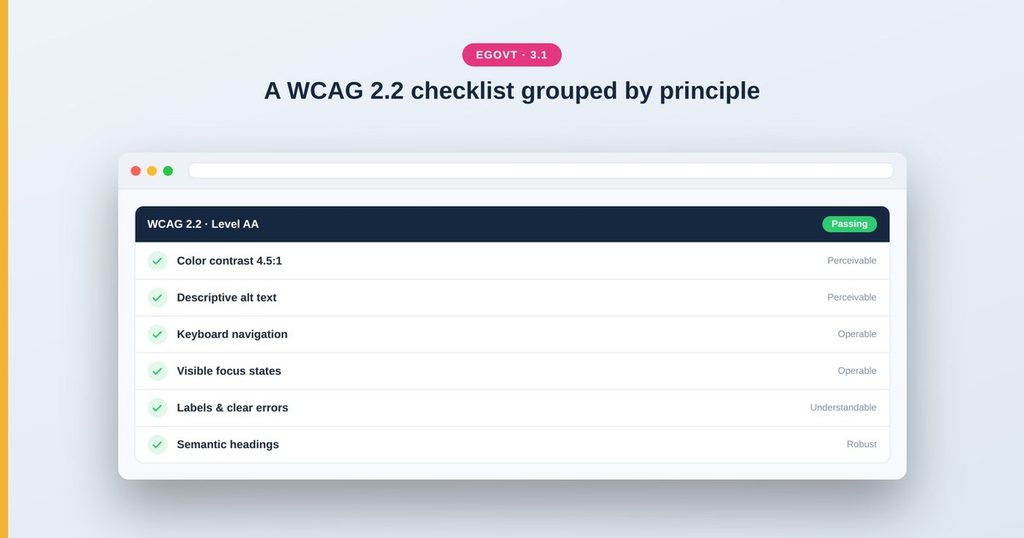
WCAG groups its rules under four principles — content must be Perceivable, Operable, Understandable and Robust (POUR). You don’t need to memorise the spec; you just need to check that your pages satisfy each principle. Here’s the working checklist.
The WCAG 2.2 checklist
Perceivable
- Color contrast — body text has a contrast ratio of at least 4.5:1 against its background (3:1 for large text).
- Alt text — every meaningful image has a descriptive alt attribute; decorative images have empty alt.
- Don’t rely on color alone — links, errors and states are distinguishable without color.
- Captions & transcripts — video has captions and audio has a transcript.
- Text resizing — the layout still works when text is zoomed to 200%.
Operable
- Keyboard access — every link, button and form field works with the keyboard alone (Tab, Enter, Space).
- Visible focus — the focused element always has a clear, visible outline.
- Skip link — a “Skip to content” link lets keyboard users bypass the menu.
- No keyboard traps — focus can always move away from any component.
- Target size (2.2) — clickable targets are large enough to tap comfortably.
- Descriptive links — link text makes sense out of context (avoid “click here”).
Understandable
- Page language — the site declares its language (lang attribute).
- Consistent navigation — menus and layout stay consistent across pages.
- Labels & instructions — form fields have visible labels and clear error messages.
- Plain language — content is written clearly for a general audience.
Robust
- Valid, semantic markup — headings (H1–H3) are in order, lists are real lists, landmarks are used.
- Name, role, value — custom components expose their state to assistive tech (ARIA where needed).
- Works with screen readers — the page reads in a logical order.
How to test your site
Combine automated and manual checks: run a free tool like WAVE or axe to catch common issues, then test by hand — unplug the mouse and navigate with the keyboard, check contrast with a contrast checker, and read a page with a screen reader (VoiceOver or NVDA). Automated tools catch perhaps a third of issues; the manual pass matters most.
A theme with a solid foundation removes a lot of the work — Egovt is built with sufficient contrast, keyboard navigation, semantic headings and visible focus states, so many boxes are ticked before you add content.
Tips to stay compliant
- Bake accessibility into your content workflow — check every new page, not just at launch.
- Write alt text as you upload images, while the context is fresh.
- Keep a short internal checklist and review it before publishing.
- Re-test after any theme or plugin change.
This checklist is one piece of the wider compliance picture. For how WCAG fits alongside ADA, Section 508, GDPR and security, see our government website accessibility and compliance guide.
A theme that starts you closer to compliant
Egovt ships with an accessibility-ready foundation — sufficient contrast, keyboard navigation, semantic headings and visible focus — so you begin much closer to WCAG. See it in the live demo.
Frequently asked questions
What is WCAG 2.2 and do I need it?
WCAG 2.2 is the current Web Content Accessibility Guidelines. Government and public-sector sites are frequently required to meet it (usually Level AA) under laws like the ADA, Section 508 or the European Accessibility Act.
What accessibility level should a government site meet?
Level AA is the common legal target. It covers contrast, keyboard access, labels, focus visibility and more — the items in this checklist.
Can I make a WordPress site WCAG compliant?
Yes. Start with an accessibility-ready theme like Egovt, then follow the WCAG checklist for your content — contrast, alt text, keyboard access, headings and clear labels.
Do accessibility plugins make my site compliant?
They help, but no plugin makes a site fully compliant on its own. Real compliance comes from accessible markup, design and content, verified with manual testing.
