
Looking for a rental plugin deposit payment feature that works seamlessly with WooCommerce?
The WooCommerce Booking Plugin for Rentals and Services – BRW lets you collect partial payments (deposits) upfront and the remaining balance later — reducing booking friction, improving cash flow, and boosting conversions. In this guide, you’ll learn exactly how to enable and customize deposit payments step by step.
What Is a Deposit Payment in a Rental Plugin?
A deposit payment is a partial amount paid at the time of booking. The remaining balance can be paid later — either before the rental period starts or upon pickup.
Example:
- Total rental price: $500
- Deposit set to 30% → Customer pays $150 at checkout, and $350 is paid later.
Why Use Deposit Payments for Your Rental Business?
The BRW rental plugin deposit payment feature helps you:
- Reduce booking hesitation and increase conversions
- Improve cash flow with partial upfront payments
- Discourage last-minute cancellations
- Offer more flexibility and trust to customers
How Deposits Work in BRW Rental Plugin (End-to-End Flow)
- Admin configures deposits on a rental product (fixed or %).
- Customer books and pays the deposit at checkout.
- Booking appears in BRW → Manage Bookings with Partial Payment status.
- Remaining Balance Order is generated:
- Manual: You create it from the booking.
- Automatic: BRW generates & emails it X days before pickup/arrival.
- Customer pays the balance via secure link → WooCommerce updates the order from Pending Payment to Processing.
? Tip: Offer both options—Deposit or Pay in Full—on the product page to give customers a choice.
How to Enable Deposit Payments in BRW Rental Booking Plugin
Step 1: Create a Rental Product
Go to Products → Add New (or edit an existing product).
In Product data, choose Rental.
Step 2: Turn On Deposits
Open the Deposit tab.
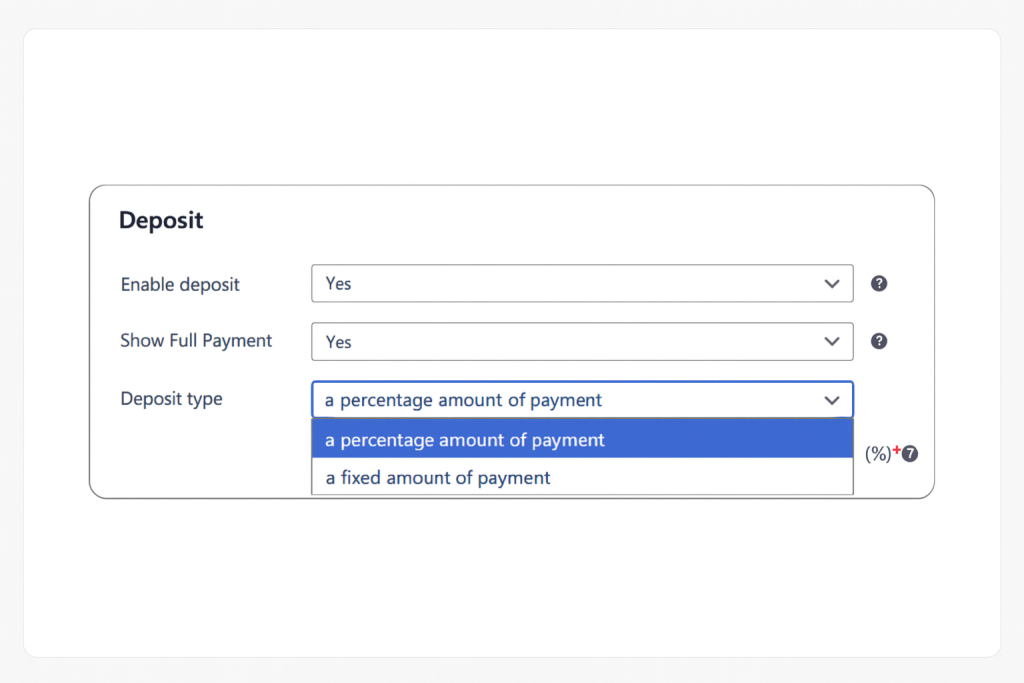
Enable Deposit → Yes.
(Optional) Show Full Payment → Yes to display both Deposit and Full options.
Step 3: Choose Deposit Type
- Fixed amount (e.g., $100), or
- Percentage (e.g., 30% of total)
When to Use Which:
- Percentage works best if your pricing changes with dates, duration, or add-ons.
- Fixed suits flat-rate rentals with stable pricing.
Configuring the Remaining Balance Workflow
Option A — Manual Remaining Balance
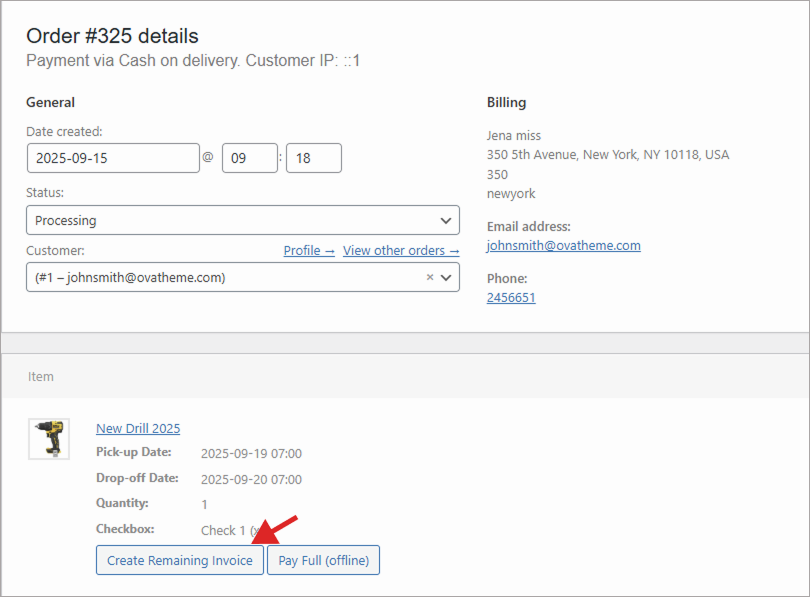
- Go to BRW → Manage Bookings.
- Open the booking → click Create Remaining Invoice.
- In Order actions, choose Send order details to customer to email the secure payment link.
Option B — Automatic Remaining Balance
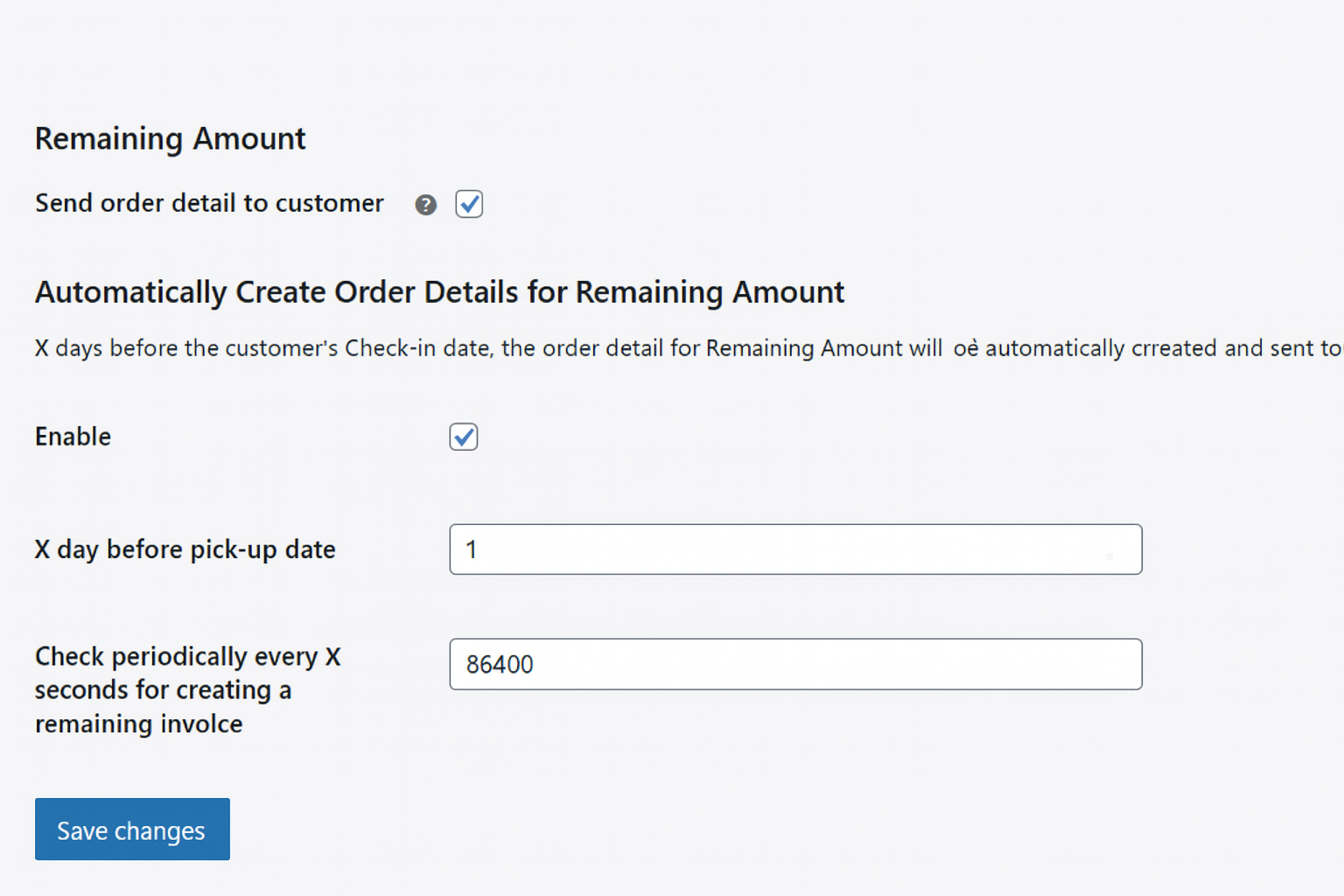
- Enable Automatic Remaining Invoice: ON.
- Set X days before pickup: BRW will create the remaining order automatically.
- Send mail: ON to automatically email the secure payment link.
- BRW’s scheduler checks at intervals to create invoices at the right time.
Recommendation:
- For short rentals (same-day/next-day): 1–2 days lead time.
- For long rentals (weeks+): 7–14 days before pickup.
Practical Examples of Rental Plugin Deposit Payment
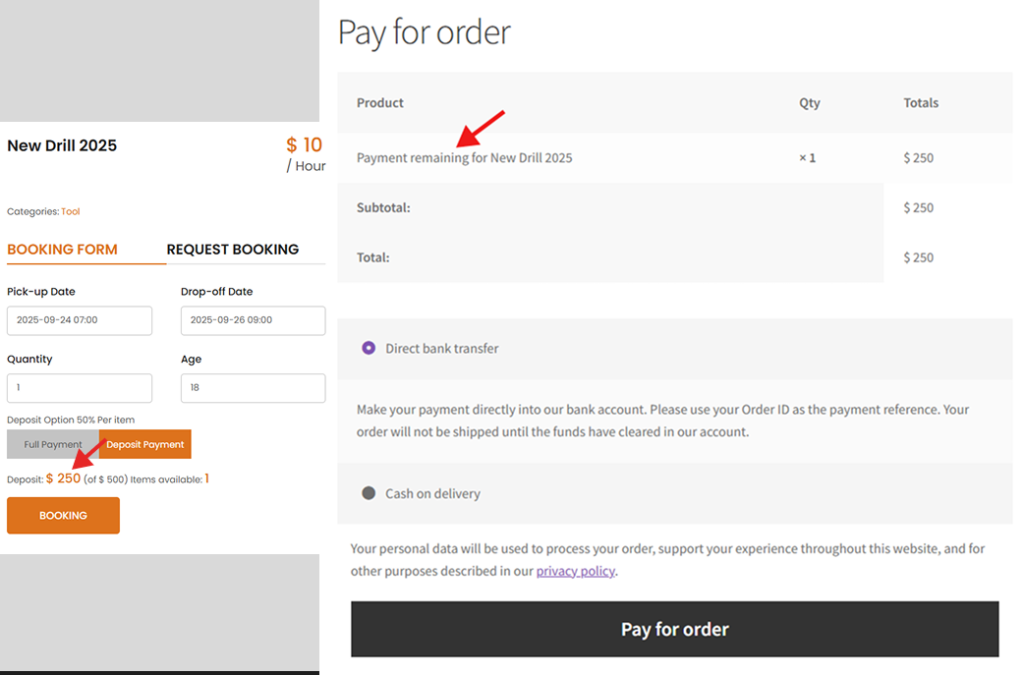
Example 1: Percentage Deposit
Total rental price: $500
Deposit: 30% → Customer pays $150 now, $350 later.
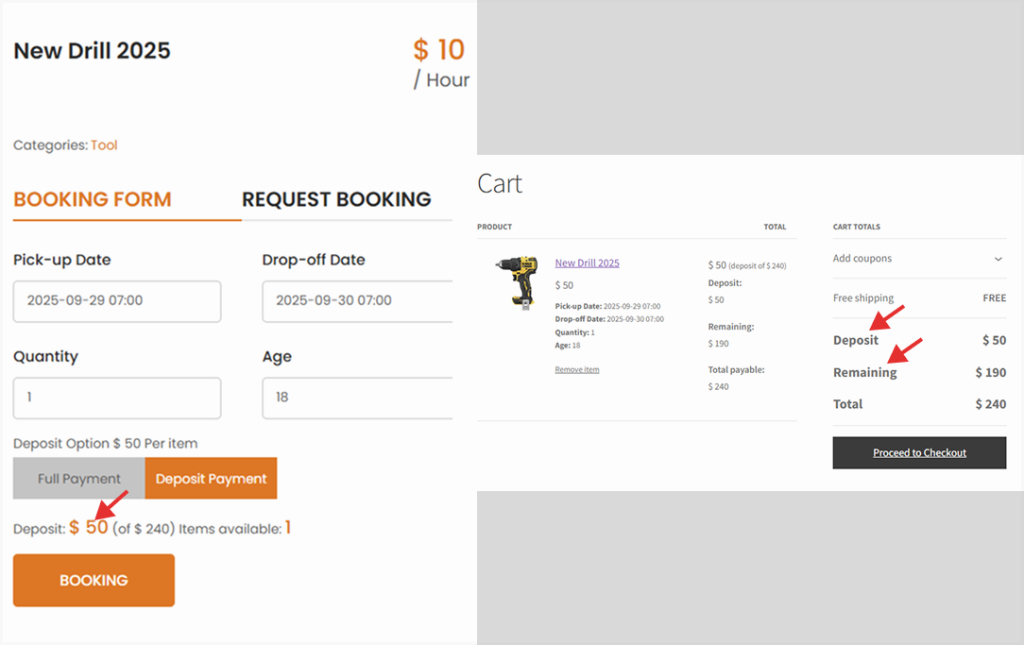
Example 2: Fixed Deposit
Total rental price: $240
Fixed deposit: $50 → Customer pays $50 now, $190 later.
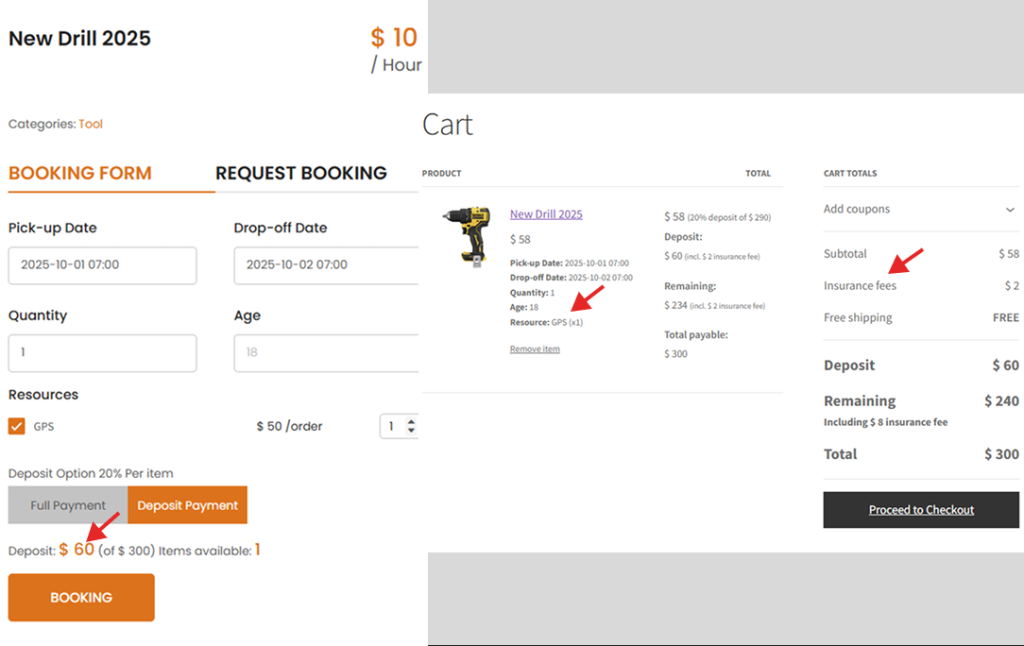
Example 3: Add-ons & Fees
Rental price $240 + GPS add-on $50 + Insurance $10 → Total Amount $300
20% deposit → $60 ( 20% of $300) now, $240 later.
(Clarify whether deposit is calculated before/after taxes/fees/insurance in settings.)
Best Practices & Tips for Using Deposit Payments
- Clarity on the product page: Add a note like “Pay a deposit today, settle the rest before pickup.”
- Show both options: Deposit and Pay in Full—boosts conversions and average order value.
- Align with cancellation policy: Non-refundable deposits deter no-shows; refundable deposits increase trust.
- Follow-up reminders: Send a gentle reminder 24–48 hours after the first email if the balance isn’t paid.
- Check time zones: Make sure your store time zone matches your operations.
- Test payment gateways: Ensure both the deposit and balance payments run smoothly.
Frequently Asked Questions About Deposit Payments in BRW
Q1: Can customers switch from Deposit to Full payment at checkout?
Yes—enable Show Full Payment so they can choose on the product page.
Q2: What happens if the customer doesn’t pay the remaining balance?
Define a policy (auto-cancel after X days, deposit forfeited). You can manually cancel or use Automatic Remaining Invoice + Send mail for reminders.
Q3: Does the remaining balance link expire?
By default, WooCommerce order links remain valid until the order status changes or you cancel it.
Q4: Can I collect the balance in person?
Yes. Mark the remaining order “Paid” in WooCommerce after collecting offline. The booking then shows as fully paid.
Troubleshooting Deposit Payment Issues
- Remaining invoice not being created automatically:
- Check Automatic Remaining Invoice = ON.
- Verify lead time and store time zone.
- Ensure WP Cron is running.
- Booking must have a valid future start date.
- Customer didn’t receive the email:
- Confirm Send mail = ON.
- Check WooCommerce → Status → Logs and SMTP setup.
- Ask customer to check spam/promotions folders.
- Wrong deposit amount:
- Re-check whether it’s fixed or percentage.
- Review taxes/coupons/add-ons rules.
Summary
The BRW rental plugin deposit payment feature makes partial payments simple and flexible. Whether you want to reduce risk, improve customer experience, or offer payment flexibility, deposits are a powerful tool to help your rental business grow.
Start collecting deposits today — and watch your bookings increase!
Watch Tutorial Video:
