
If you’re planning to create a car rental website but don’t have coding skills, you’re not alone. Many small car rental businesses want to move online but worry about technical complexity.
The good news? You can build a professional car rental website quickly using WordPress and the powerful WooCommerce Booking Plugin for Rentals and Services – BRW — no coding required.
This guide will walk you through step-by-step and show how you can start accepting bookings online today.
Why Create a Car Rental Website?
Many small car rental businesses still manage bookings through:
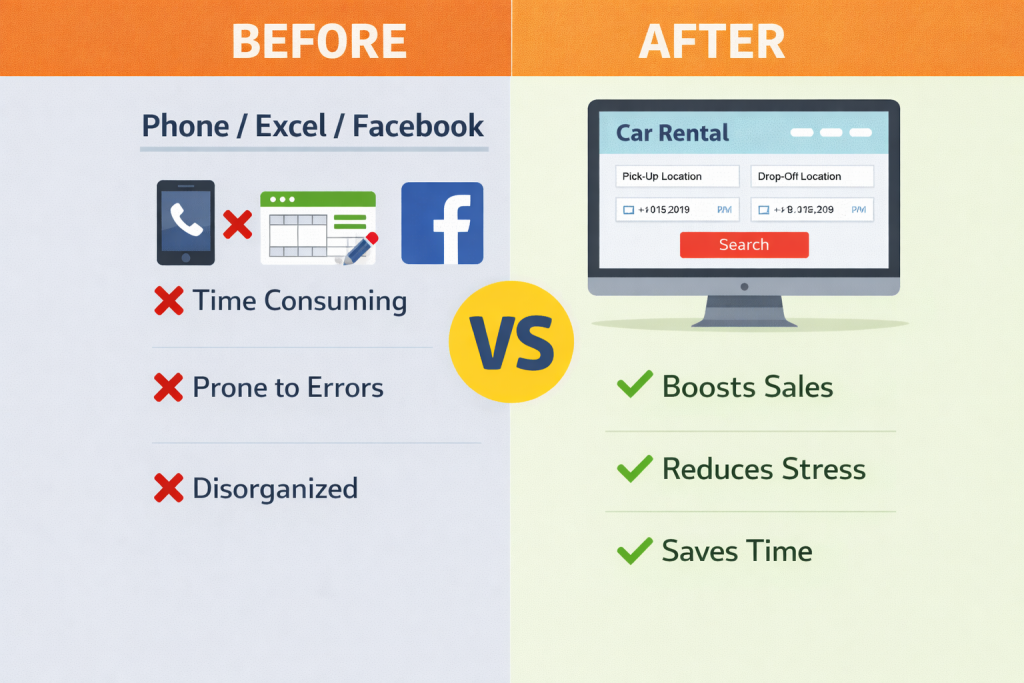
- Phone calls
- Facebook or WhatsApp
- Excel spreadsheets
This often leads to:
- Double bookings
- Missed customers
- Time-consuming manual work
- Difficulty scaling your business
Creating a car rental website with automatic booking system helps you:
- Accept bookings 24/7
- Automate scheduling
- Increase bookings
- Look more professional
What You Need to Create a Car Rental Website
You only need four things:
- Domain name: Your domain name is your website address on the internet. Example: yourcarrental.com, citycarrental.com, rentcaronline.com …
- Hosting: Hosting is where your website files are stored. It makes your website accessible online.
- WordPress: WordPress is the platform used to build your website. It requires no coding skills, is also highly customizable, allowing you to design your website exactly the way you want using themes and plugins.
- BRW Car Rental Booking Plugin: The BRW Rental Booking Plugin turns your WordPress website into a car rental booking system. This is the most important tool for building your car rental website
Once you have these four things, you can build your car rental website without coding
Step-by-Step: Build a Car Rental Website Without Coding
Step 1: Install WordPress
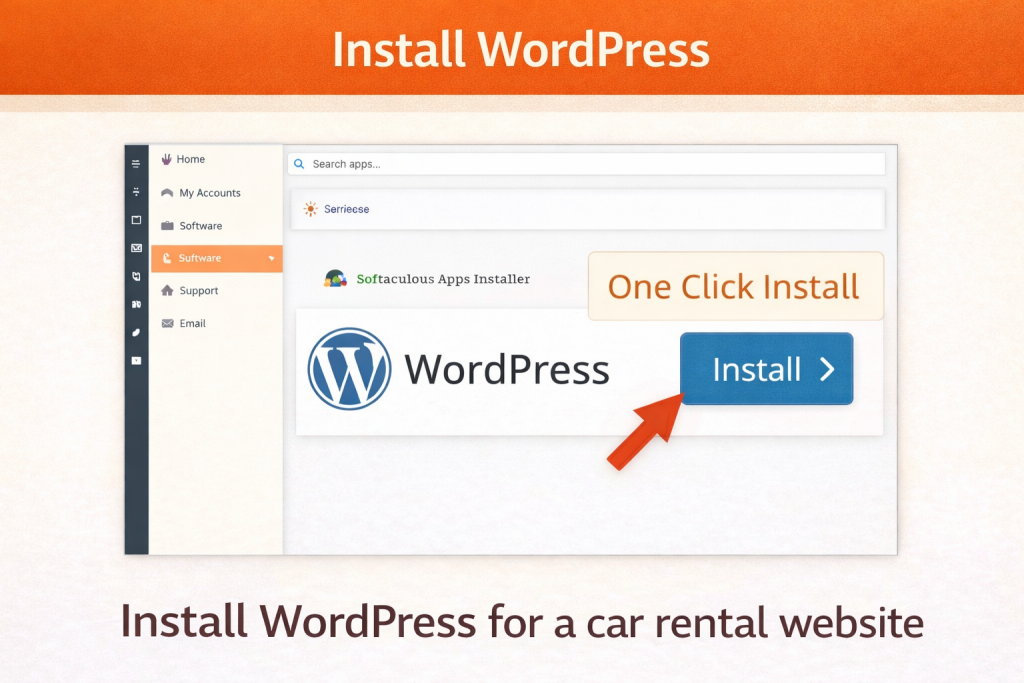
- Log in to your hosting account
- Find WordPress or One-Click Install: Most hosting providers offer one-click installation allows you to install WordPress automatically with just one click — no technical setup or coding required
- Click Install WordPress
- Enter your website details (name, username, password)
- Click Install
Your WordPress website will be ready in minutes
Step 2: Install BRW Rental Booking Plugin
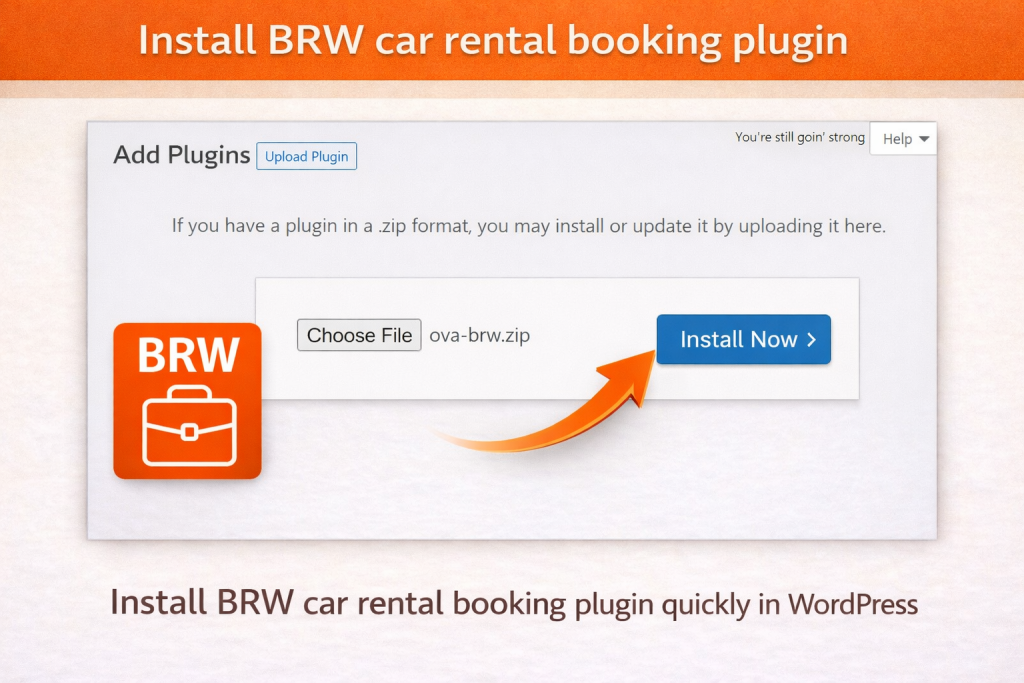
Install BRW Car Rental Plugin to turn your website into a full car rental booking system.
- Go to WordPress Dashboard
- Navigate to Plugins, click Add New
- Upload BRW WordPress Rental Plugin and click activate
Once activated, your car rental booking system is ready to use in just a few clicks.
With BRW, you can:
- Accept online bookings
- Manage vehicle availability
- Set flexible pricing
- Add extra services
- Set booking rules
- Enable online payments
This makes it ideal for small and medium car rental businesses.
Step 3: Add Your Rental Cars
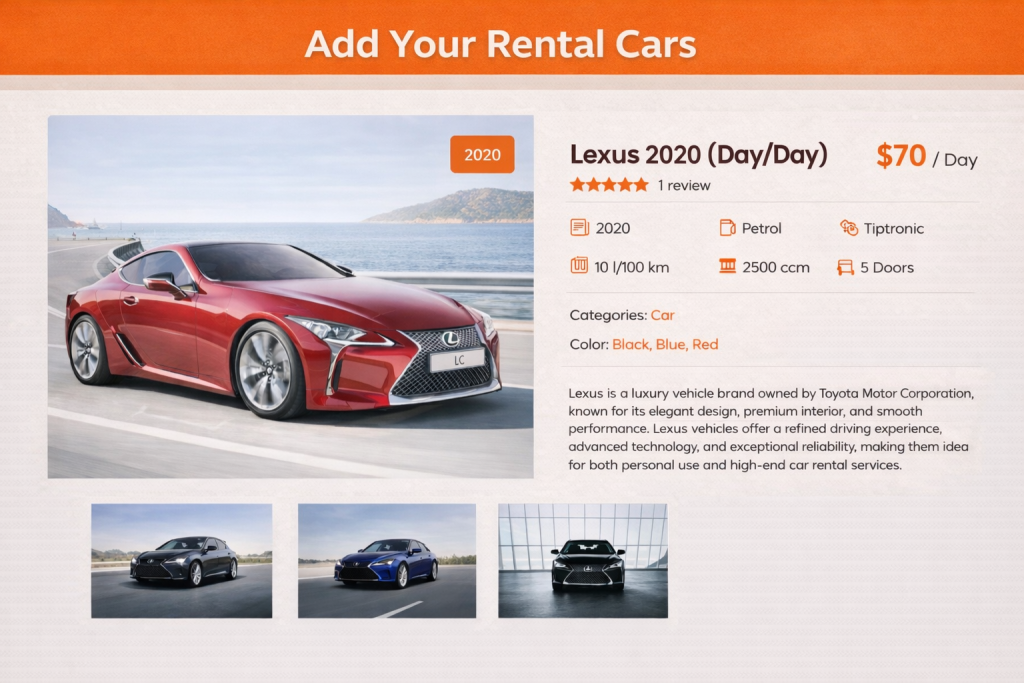
With BRW Rental Booking Plugin, you can easily add and manage your rental vehicles:
- Enter your car name and description
- Upload vehicle images
- Set inventory (number of available vehicles)
- Add vehicle details such as specifications (Transmission, Fuel Type, Seats, etc.) and features (Air Conditioning, GPS, Bluetooth, etc.)
This helps customers clearly understand your vehicles and choose the right option quickly.
Step 4: Set Pricing Rules
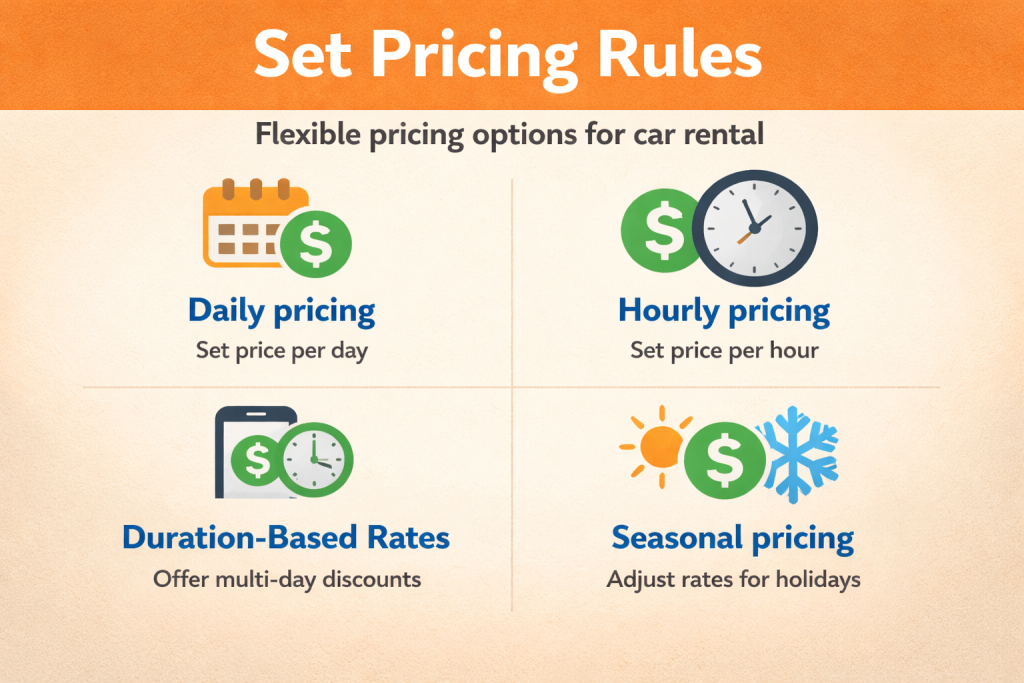
BRW offers flexible pricing options to match your business needs:
- Daily pricing — Set regular price and weekday pricing
- Hourly pricing — Perfect for short-term rentals
- Mixed pricing — Combine daily and hourly pricing
- Long-term rental pricing — Offer discounts for longer bookings
- Seasonal rates — Adjust pricing during peak seasons or holidays
Flexible pricing helps maximize revenue and attract more customers.
Step 5: Configure Booking Options
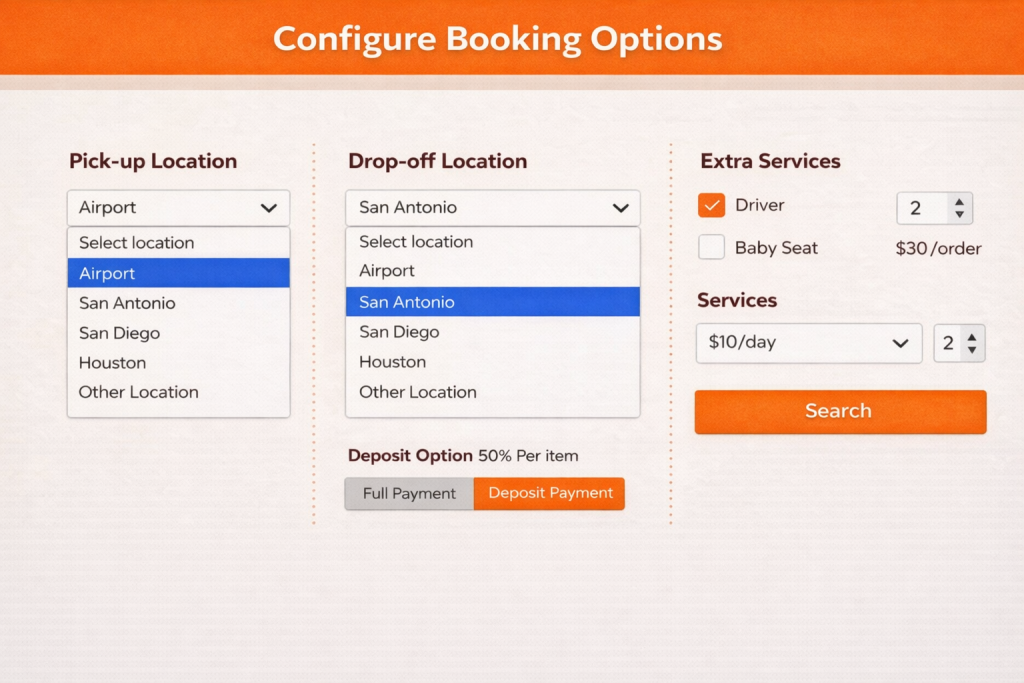
You can configure various booking options to match your business workflow:
- Set deposit amount
- Set up guests
- Set pick-up and drop-off locations (with fees for each location)
- Set pick-up and drop-off time
- Add extra services (GPS, driver, insurance, etc.)
- Configure disable dates and disable weekdays
- Configure booking rules:
- Minimum & maximum booking days (hours)
- Advance booking days
- Preparation time (days/hours)
All these settings are simple to configure with an intuitive interface, making them easy for users — even beginners.
Step 6: Create a Booking Search Page
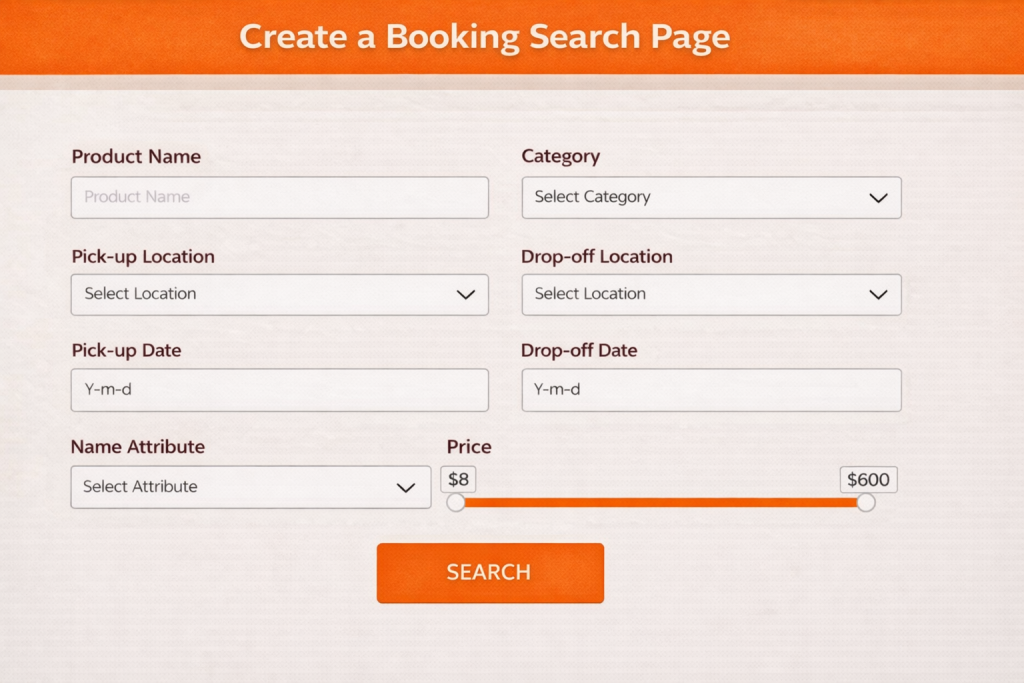
A booking search page helps customers quickly find available vehicles based on their needs. Instead of browsing multiple pages, users can search and book in just a few clicks.
To create a booking search page:
- Go to Pages and click Add New
- Enter a title such as Car Rental Booking
- Insert the booking search shortcode (that is provided in BRW documentation) into the page
- Click Publish
Final Results
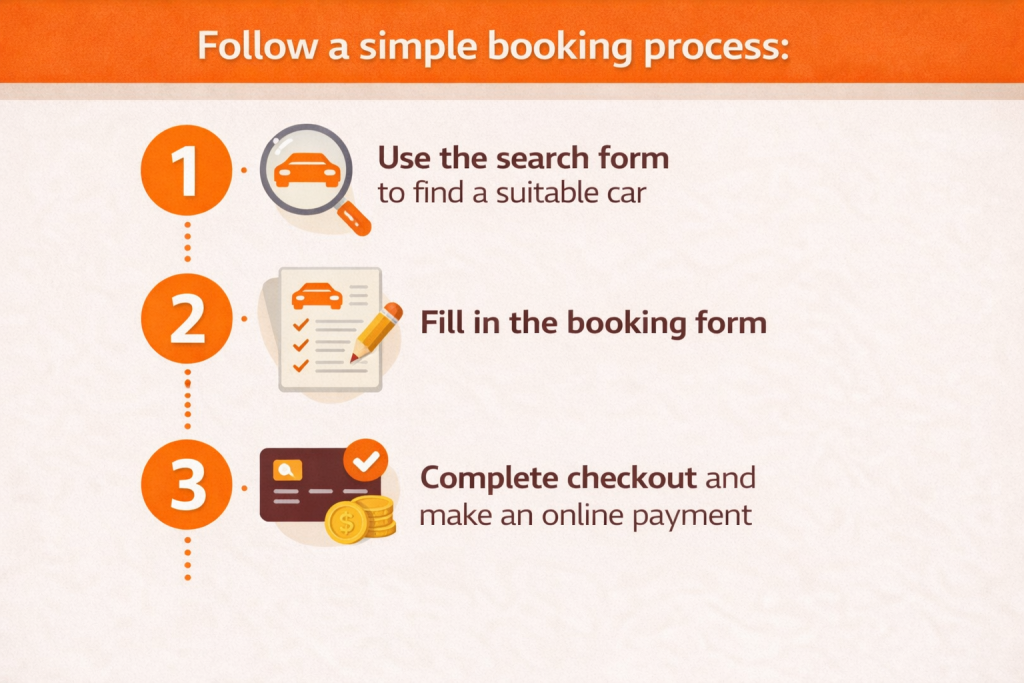
Once everything is set up, publish your website and start accepting bookings immediately.
Customers can follow a simple booking process:
- Use the search form to find a suitable car
- Fill in the booking form:
- Select dates
- Choose pick-up & drop-off locations
- Add guests
- Add extra services
- Enter quantity
- Complete checkout and make an online payment
Key Features of BRW Car Rental Booking Plugin
Perfect Pricing Options for Car Rental
With BRW, you can create smart pricing strategies to increase bookings:
- Daily pricing for standard rentals
- Hourly pricing for short-term bookings
- Mixed pricing for maximum flexibility (daily & hourly pricing)
- Duration-based pricing to encourage long-term rentals
- Seasonal pricing for peak demand periods
This flexibility allows you to stay competitive and maximize your profits
Availability Calendar
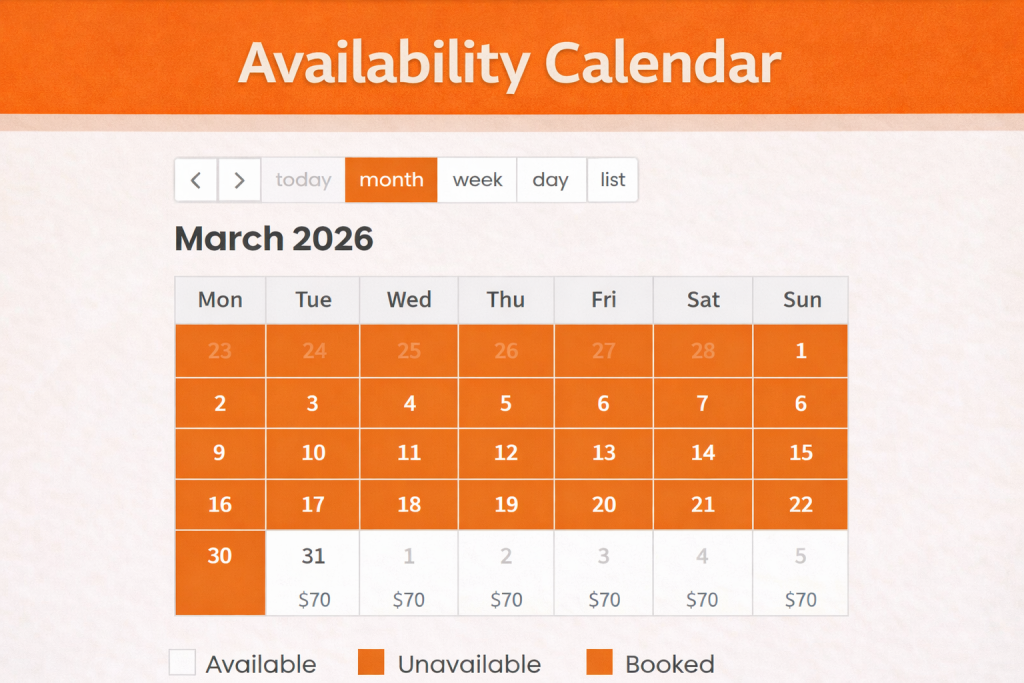
Manage vehicle availability easily with a built-in calendar:
- Avoid double bookings
- Easy schedule management
- Block unavailable dates
- Disable unavailable weekdays
This helps ensure smooth operations and better vehicle management.
Specific Rental Settings for Car Rental
BRW includes dedicated features designed specifically for car rental businesses:
- Add car specifications and features
- Upload car images
- Set pick-up and drop-off location pairs with distance-based fees
- Set separate pick-up location list and drop-off location list
- Set specific fees for each pick-up and drop-off location
- Configure pick-up time and drop-off time
- Add extra services such as: Driver service, insurance, GPS, child seat
These settings help you create a professional and flexible booking experience.
Essential Booking Rules for car rental business
These are essential booking rules for managing a car rental business efficiently. They help automate operations, prevent scheduling conflicts, and ensure smooth vehicle availability.
- Minimum and maximum booking days (hours) help control rental duration and improve profitability.
- Preparation time (days/hours) ensures enough time to clean, inspect, and prepare vehicles between bookings.
- Advance booking days prevents last-minute reservations and allows better planning.
- Disable dates block specific days for maintenance, holidays, or unavailable vehicles.
- Disable weekdays restrict bookings on selected days, such as weekends or non-working days.
Who Should Use This Solution?
This solution is ideal for:
- Small car rental businesses
- Startup rental companies
- Travel agencies
- Entrepreneurs starting rental services
Benefits of Using BRW
- No coding required
- Fast setup
- Affordable solution
- Automated booking system
- Professional website
Final Thoughts
You don’t need technical skills to create a car rental website. With WordPress and BRW Rental Booking Plugin, you can build a professional and fully functional car rental booking system in a short time.
With this solution, you can:
✅ Build a professional website quickly using ready-made themes
✅ Add your car with detailed information, images, and pricing
✅ Automate bookings and manage availability in real time
✅ Set flexible pricing such as hourly, daily, or long-term rentals
✅ Offer extra services like drivers, GPS, or insurance
✅ Avoid double bookings with an availability calendar
✅ Manage bookings easily from a user-friendly dashboard
✅ Accept bookings 24/7 without manual work
Start building your car rental website today and begin accepting bookings online with BRW plugin now.
