
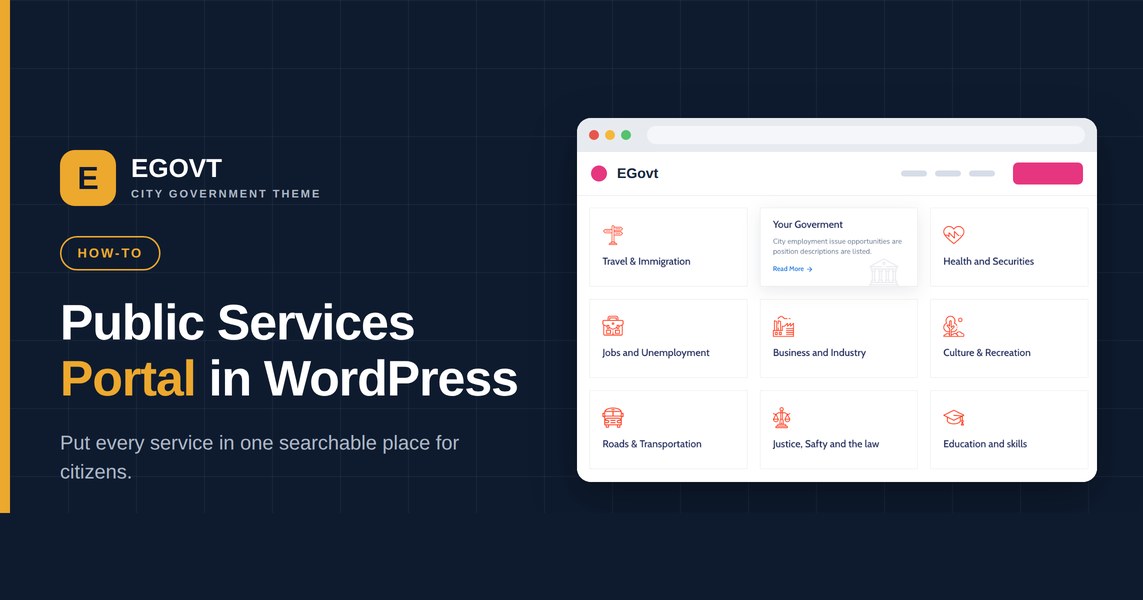
When residents visit a government website, most of them want one thing: to find a service and get it done. A public services portal puts every service the organization offers in one searchable place, so citizens reach the right office without digging through menus. This guide explains what a portal is, why your government needs one, and what separates a good one from a plain list of links — and then points you to the exact steps to build it.
What is a public services portal?
A public services portal is a structured, searchable directory of everything a government body provides — permits, payments, registrations, waste collection, licensing, complaints and more. Each service has its own page explaining what it is, who it is for, what you need, and which office handles it. Done well, it becomes the most-used part of the whole site.
Why your government needs one
A portal isn’t just tidier — it changes how citizens experience your government online, and it takes pressure off your staff. A well-built services portal:
- Reduces phone calls and walk-ins by letting residents self-serve at any hour.
- Helps people find the right office fast, instead of guessing which department to contact.
- Is available 24/7, unlike a front desk.
- Supports accessibility and compliance, which public-sector sites are often legally required to meet.
- Builds trust by presenting government clearly and consistently.
What a good public services portal includes
- A searchable, filterable list of all services, grouped by category.
- A clear detail page per service: description, requirements, fees and the responsible office.
- Obvious next steps — a form, a phone number, or a link to the right department.
- Downloadable forms attached to the services that need them.
- Mobile-first design, because most citizens arrive on a phone.
A portal vs. a plain list of pages
You could create an ordinary WordPress page for each service, but you would quickly hit the limits: no consistent layout, no filtering, no categories, and nothing reusable as the list grows. A purpose-built service module gives every service the same clean template, a searchable and filterable archive, categories, and downloadable forms — the difference between a pile of pages and an actual portal that residents can navigate.
How Egovt delivers it
Rather than building a custom post type and search from scratch, the Egovt theme includes a dedicated Service module (the OvaTheme Service plugin) that provides all of the above out of the box: a searchable services archive, a clean page per service, categories for filtering, downloadable forms via a File List Attached field, and Elementor widgets to place services anywhere — all editable without code.
Want the exact, click-by-click setup — creating each service, adding categories, choosing the layout and dropping services onto a page with Elementor? Follow our hands-on walkthrough on how to add an online public services section, and see how a portal fits into a complete site in our government WordPress theme guide.
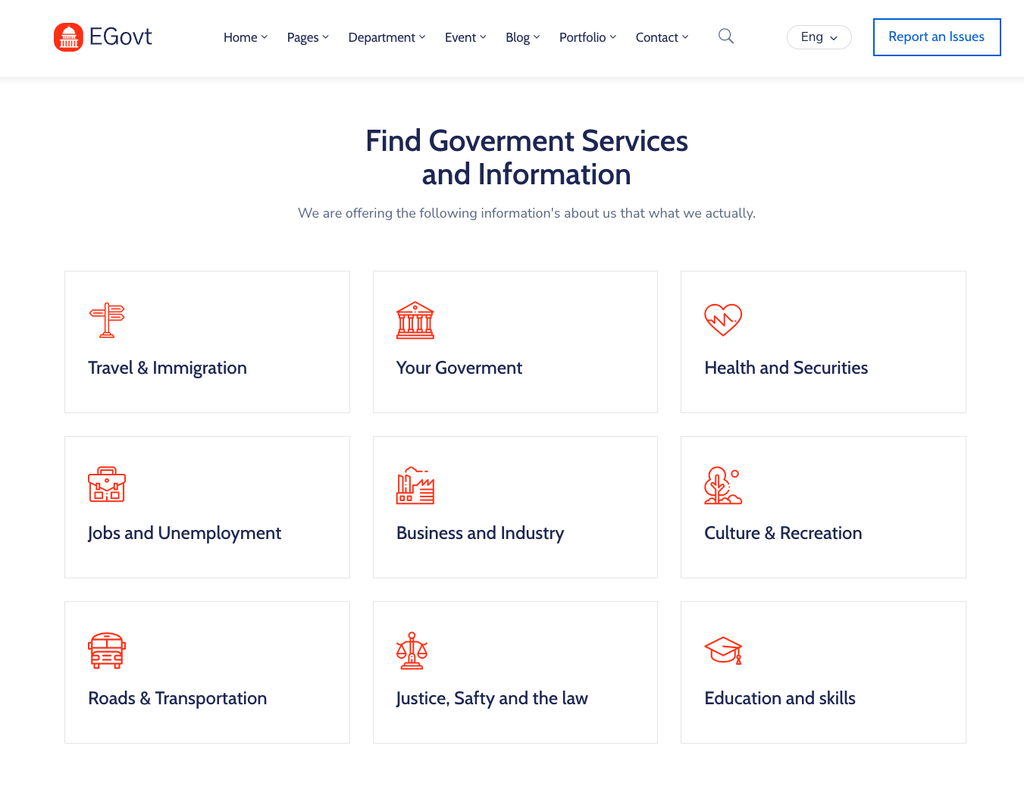
Why we’d start with Egovt
Egovt gives you a services portal, departments and a document center in one theme, editable without code and priced at $49. See it working in the live demo.
Frequently asked questions
What is a public services portal?
A searchable directory of every service a government body provides, with a detail page for each service explaining what it is, what you need and which office handles it.
Why does a government website need a services portal?
It lets residents self-serve around the clock, reduces phone calls and walk-ins, helps people reach the right office quickly, and presents services consistently — which builds trust and eases the load on staff.
Is a portal better than separate service pages?
Yes. Individual pages can’t be filtered or searched as a set and drift out of consistency. A service module gives every service the same template plus a searchable, categorized archive.
Does Egovt include a services portal?
Yes. The Service module is part of the Egovt theme — a searchable archive, per-service pages, categories and downloadable forms — and it works alongside departments and documents out of the box.
